Two-Factor Login
How Adminkeep's Two-Factor Login works: the emailed code, choosing roles, remembered devices, the recovery link, and three ways back in if you are locked out.
Two-Factor Login asks the roles you choose for a six-digit code, emailed to the address on their account, after their password. A stolen or guessed password then gets as far as the code screen and no further. It is in the Site Lock group and arrived in 2.6.0.
The code goes by email, so there is no app to install and nothing for each user to set up. The cost is that the site has to be able to send email. Read Locked out: three ways back in before you switch it on. For the background and the trade-offs, see the guide to WordPress two-factor authentication by email.
Switch it on
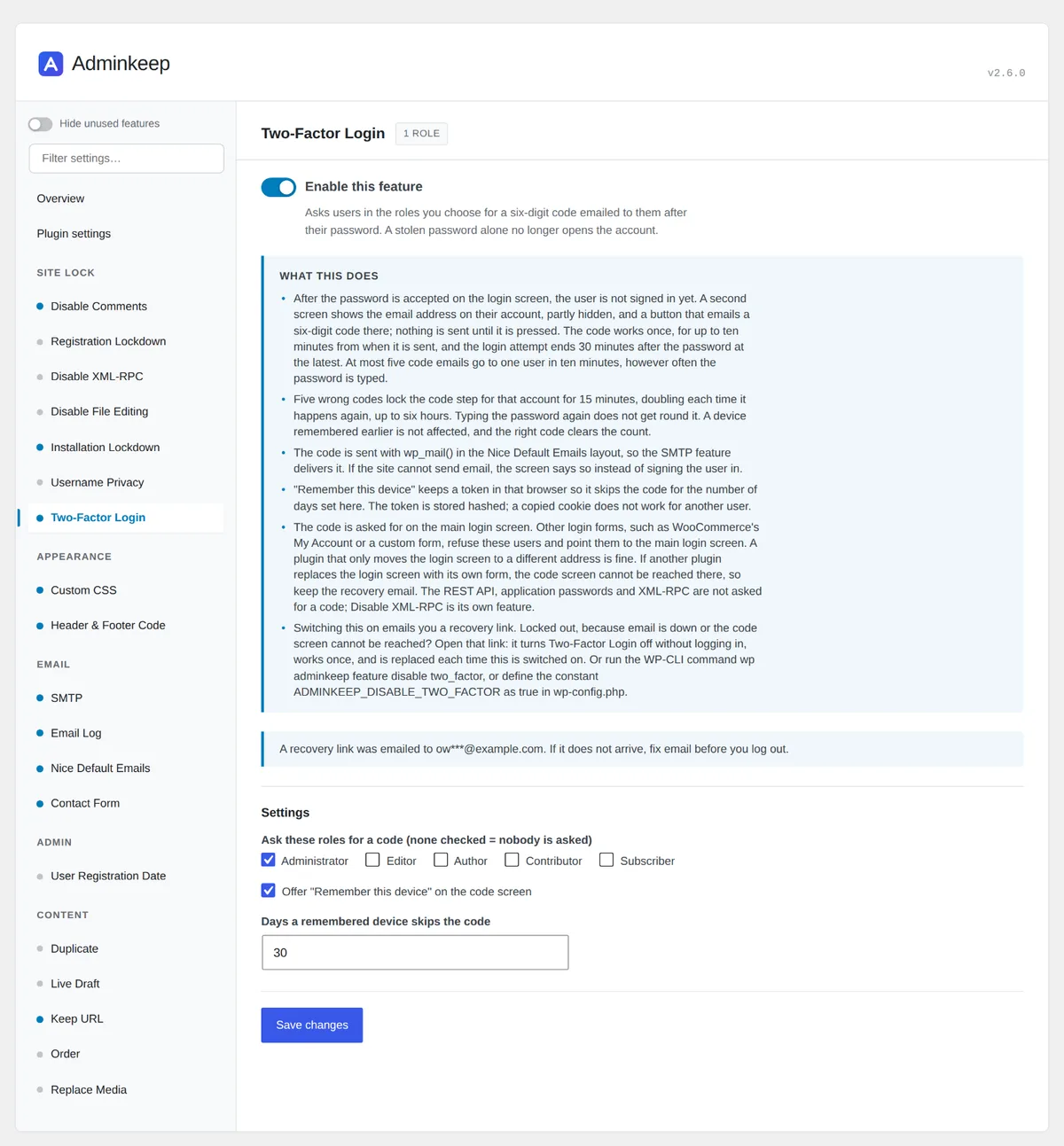
Go to Settings → Adminkeep and switch on Two-Factor Login, in the Site Lock group. The switch saves at once, and three things happen:
- Users in the chosen roles are asked for a code the next time they log in. Administrators only, until you change it.
- A recovery link is emailed to you, the person who switched it on.
- The feature’s panel shows where that email went, with the address partly hidden, or warns that it could not be sent.
You stay logged in: a session that is already open is not interrupted, and opening the login screen while logged in does not ask for a code.
Before you log out, check that the recovery email arrived. Then open a private browser window and log in there, so you see the code arrive while your first window is still logged in. If neither email shows up, the site is not sending email. Fix that first: see Email delivery.
Choose who is asked
Three settings sit under the switch.
- Ask these roles for a code lists every role on the site, with Administrator ticked by default. Tick Editor, Shop manager or any other role to cover them too. With no role ticked, nobody is asked, even though the feature is on.
- Offer “Remember this device” on the code screen is on by default.
- Days a remembered device skips the code is 30 by default.
A user with several roles is asked if any one of them is ticked. On a multisite network, super admins are asked whenever administrators are, including on sites where they hold no role.
There is no per-user switch. A role is asked or it is not.
What a user sees at login
- They enter their username and password on the login screen, as always.
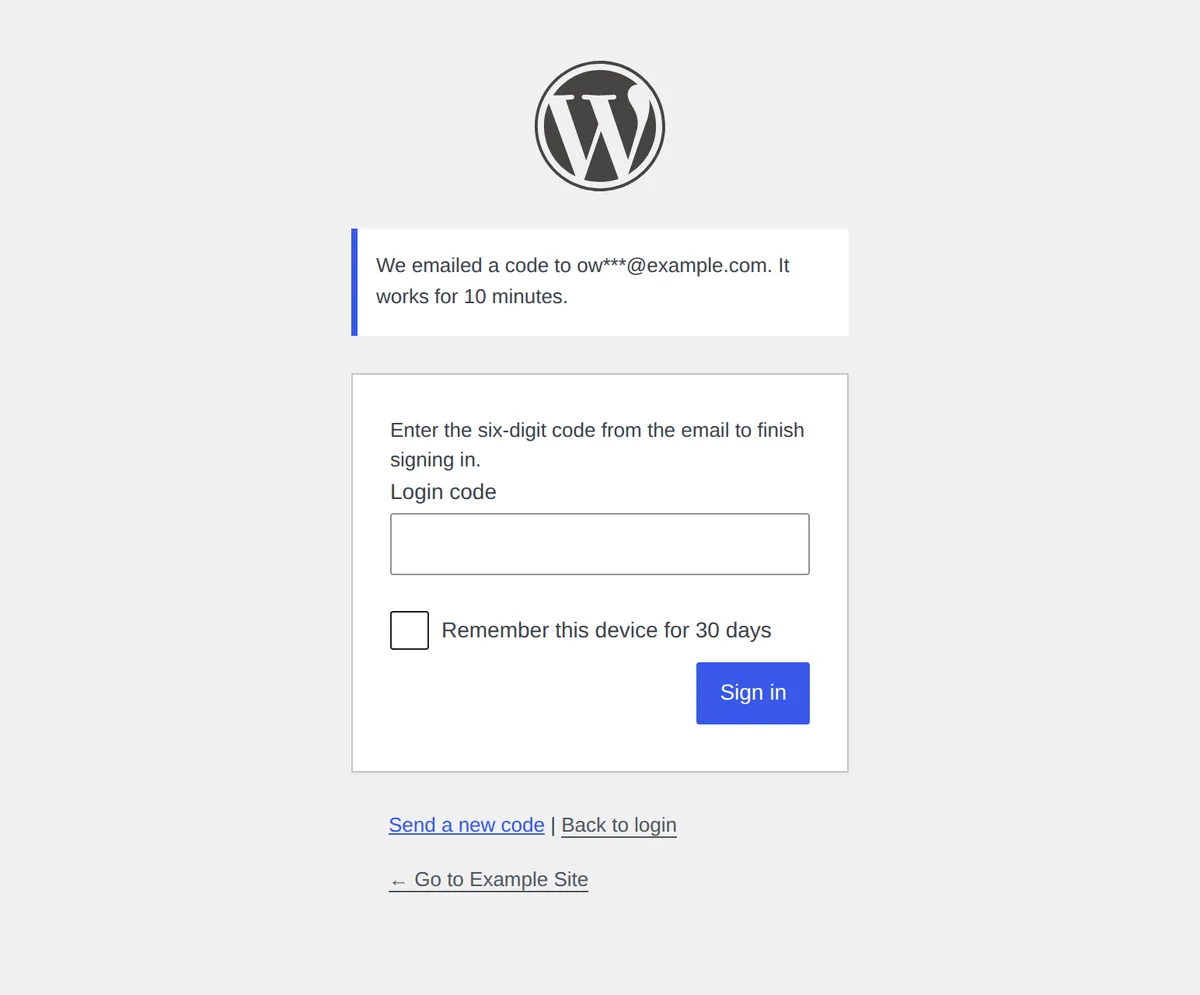
- Instead of the dashboard, a second screen says that two-factor login is on for the account and
shows the email address the code will go to, partly hidden, such as
ow***@example.com. Nothing has been emailed yet. - They press Email me the code. The email’s subject is “[Your site name] Your login code”.
- They type the six digits and press Sign in. A space in the middle is fine.
The code is sent only when the button is pressed. Someone logging in to an account whose mailbox
another person reads, a shared office@ address for instance, can tell that person first.
The limits:
- A code works once, for up to ten minutes from when it was sent.
- The whole attempt ends 30 minutes after the password at the latest. After that, the login starts again from the password.
- Send a new code works half a minute after the last one. The new code replaces the old one, and asking again does not give back tries already used.
- At most five code emails go to one user in ten minutes, however many times the password is typed.
Wrong codes
Each wrong code shows how many tries are left. Five wrong codes lock the code step for that account for 15 minutes. Each lock after that doubles the wait, up to six hours. Typing the password again does not get round it: the password form says “Too many wrong codes” and how long is left. The right code clears the count.
The lock belongs to the account’s code step and nothing else. A device that was remembered earlier still logs in, and other users are not affected. Wrong codes are also reported to WordPress as failed logins, so a plugin that limits login attempts counts them.
Remember this device
The code screen has a Remember this device for 30 days checkbox (or the number of days you set). Ticked, that browser skips the code step for that long. The password is still asked every time.
- It is per browser and per user. A second browser, a private window or another person on the same computer is asked for a code.
- Clearing the browser’s cookies forgets the device.
- Changing the number of days applies to devices remembered from then on. One already remembered keeps the days it was given.
- Untick Offer “Remember this device” and the checkbox goes away, and devices remembered earlier are asked for a code again.
Only a hash of each device’s token is stored, in the user’s own metadata, so reading the database does not hand anyone a working token, and a cookie copied to another account does nothing.
The recovery link
Every time Two-Factor Login is switched on, a recovery link is emailed to whoever switched it on. The subject is “[Your site name] Two-Factor Login is on: keep this recovery link”. Switched on from WP-CLI, where there is usually no user, it goes to the site’s administration email address.
The link is the way back in for someone who cannot reach a shell or wp-config.php:
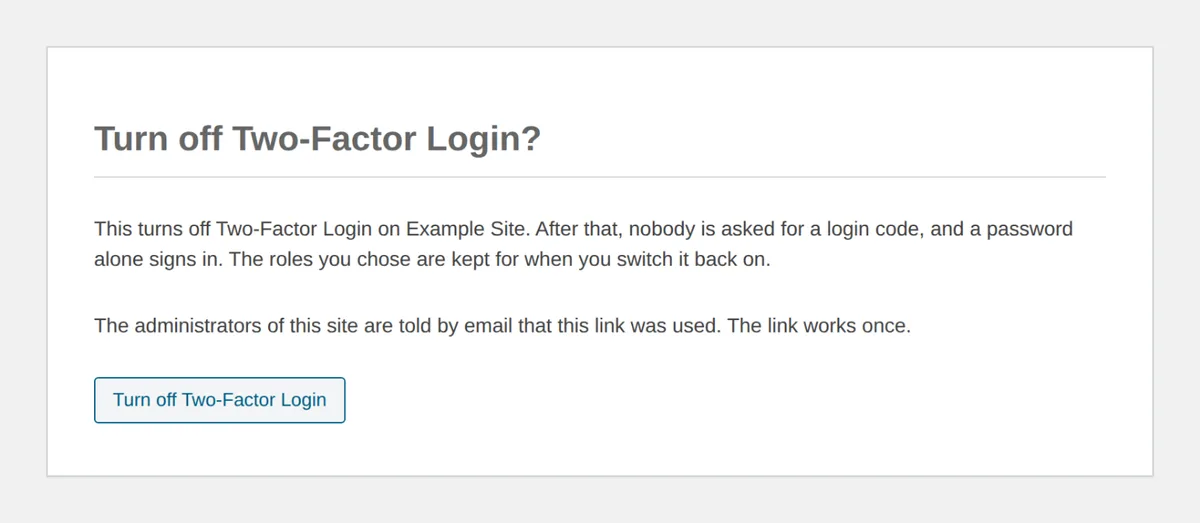
- Open the link. A page asks Turn off Two-Factor Login? and has one button. Opening the link changes nothing by itself, so a mail scanner that follows links cannot switch anything off.
- Press Turn off Two-Factor Login. The feature is switched off without anyone logging in. The roles you chose are kept for when you switch it back on.
- Log in with your password, fix what kept you out, and switch it back on.
What to know about it:
- It does not sign anyone in. It removes the code step and nothing more. The password is still needed.
- It works once, and it does not expire, since a lockout can come months later.
- A new link replaces the old one each time the feature is switched on. Switching the feature off makes the current link stop working. Keep the newest email.
- Every administrator is emailed when it is used, with the time and the IP address it was used from, and a link to switch Two-Factor Login back on.
- Anyone who has the link can turn Two-Factor Login off. Treat that email like a password: keep it, and do not forward it.
If the email does not arrive, the feature’s panel says so. Switching the feature off and on again sends a new link.
Locked out: three ways back in
Nobody in the chosen roles is signed in without a code. If the site stops sending email, or the code screen cannot be reached, those users are locked out until one of these is done. None of them needs you to log in first.
-
The recovery link from the email above.
-
WP-CLI, from a shell on the server:
wp adminkeep feature disable two_factor -
A constant in
wp-config.php, above the “That’s all, stop editing” line:define( 'ADMINKEEP_DISABLE_TWO_FACTOR', true );While the constant is there, nobody is asked for a code and the settings screen shows the feature as Off by constant. Your saved settings are not touched. Remove the line to bring Two-Factor Login back.
All three keep the chosen roles and the remembered devices.
The usual causes, and what each looks like:
- The code email never arrives. The site may not be sending email, or the email is in spam. If sending fails outright, the code screen says “The code could not be emailed” and nobody is signed in.
- The account has no valid email address. The code screen says so. An administrator who can still log in fixes the address on the user’s profile.
- Too many wrong codes. Wait for the lock to end; the password form says how long.
- The login screen is replaced by another plugin’s form. See the next section.
Other login forms
The code is asked for on the main WordPress login screen, wp-login.php. That is the one place
the code screen can appear.
WooCommerce My Account, and custom login forms. A form that signs people in through
WordPress’s own sign-in function cannot show the code screen. So it refuses users who owe a code,
with a message that links to the main login screen. On a store, that means an administrator or
shop manager in the chosen roles logs in at wp-login.php, while customers, who are not in those
roles, log in at My Account exactly as before.
A plugin that moves the login screen. A plugin that only gives the login screen a different address works as usual: the code screen follows the login screen to its new address.
A plugin that replaces the login screen. If a plugin swaps the login screen for a form of its own, the code screen cannot be reached on that site, and users in the chosen roles cannot finish logging in. Test in a private window right after switching the feature on, and keep the recovery email: its link is the way to switch Two-Factor Login off again. The link opens on an address of its own, not on the login screen, so it still works there.
What is not asked for a code
- The REST API, application passwords and XML-RPC. The apps and services behind these have no screen to type a code into, and refusing them would break integrations you set up on purpose. An application password keeps working by itself. To close XML-RPC, use Disable XML-RPC, a separate switch.
- Sessions that are already open, and a device that was remembered.
- Roles you did not tick.
Two-Factor Login covers the password login on the login screen. It is not a firewall, and it does not protect an account whose mailbox is already in someone else’s hands.
Authenticator apps, backup codes, passkeys and per-user opt-in are not part of the feature. The code is emailed, and the choice is by role.
Email delivery
The code and the recovery link are sent with wp_mail(), the same way WordPress sends a
password reset. If password resets from your site do not arrive, codes will not either.
- With Adminkeep’s SMTP feature on, they go through your mail server. The WordPress SMTP settings guide covers setting one up.
- Both go out in the Nice Default Emails layout, whether or not that feature is switched on.
- The Email Log, when it is on, lists each one with its recipient, subject and status, so you can see whether a code was sent. It keeps only the envelope of a code email or a recovery email, never the body, whatever its content setting says, so a code or a recovery link cannot be read from the log.
To check delivery before you rely on it, switch the Email Log on, log in from a private window, and look for a Sent row with the subject “Your login code”.
WP-CLI
wp adminkeep feature enable two_factor
wp adminkeep feature get two_factor
wp adminkeep feature set two_factor roles=administrator,editor
wp adminkeep feature set two_factor trust_days=14
wp adminkeep feature set two_factor trust_device=false
wp adminkeep feature disable two_factor
feature enable two_factor emails the recovery link and prints the address it went to, or
warns that it could not be sent. From a shell that address is the site’s administration email,
unless you pass WP-CLI’s --user.
| Key | Holds | Default |
|---|---|---|
roles | Role slugs, comma-separated, such as administrator,shop_manager. An empty value means nobody is asked | administrator |
trust_device | true or false: offer “Remember this device” | true |
trust_days | Days a remembered device skips the code | 30 |
feature disable two_factor is the second of the three ways back in.
The rest of the commands are in the WP-CLI docs.
Switching it off, and deleting the plugin
Switching Two-Factor Login off stops the code step from the next login. The chosen roles and the remembered devices stay stored, and the recovery link stops working. Switch it back on and a new link is emailed.
Deleting the plugin keeps all of that too, like the rest of its data. With Delete all Adminkeep data when the plugin is deleted switched on (under Plugin settings), deleting it also removes the remembered devices, any login waiting on its code, any wrong-code lock and the recovery link.