Configuration
Every Adminkeep setting, feature by feature, with defaults — email log, custom CSS, header code, SMTP, disabling comments, blocking plugin installs.
Everything is configured from Settings → Adminkeep. Each feature is a single switch, off by default, and starts working the moment you turn it on. Changes save as you make them — a “Changes saved” confirmation appears, and if a save fails, nothing is changed.
Looking for a specific setting? Type in the Filter settings box at the top of the sidebar — the feature list narrows as you type.
Only use a few features? Switch on Hide unused features, above the filter box, and the sidebar lists just the ones you have turned on. The rest are still there: the filter finds them, and the Overview lists every feature. The switch applies to the whole site, so every administrator sees the same trimmed list (until 1.8.1 it was a choice each administrator made separately).
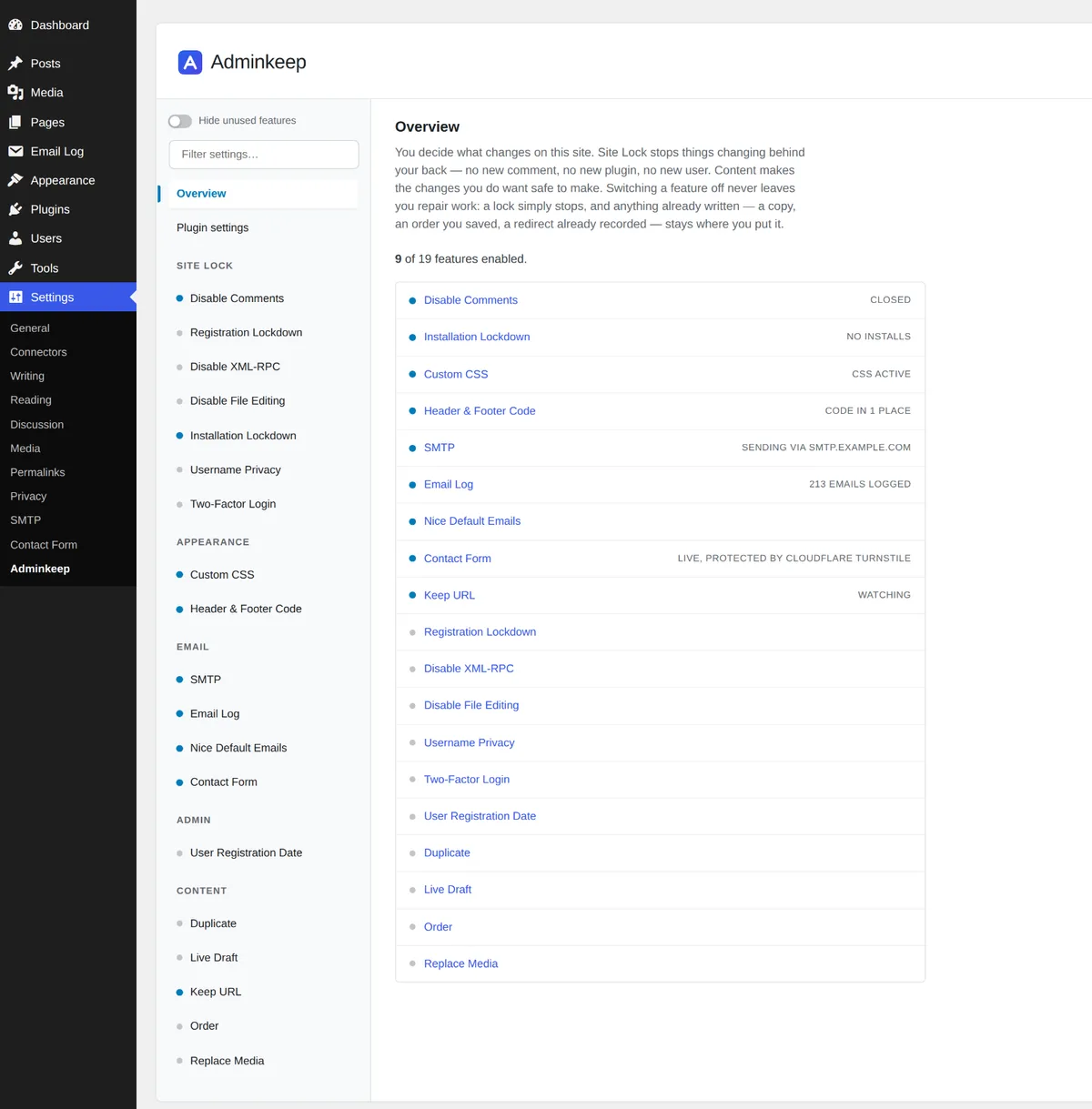
Every feature is instantly reversible: switch it off and your site behaves exactly as it did before, with nothing to repair.
The sidebar lists the features in five groups, in this order since 2.1.0: Site Lock, Appearance, Email, Admin and Content. This page follows the same order, after the Plugin settings tab.
Plugin settings
Since 2.2.0, a Plugin settings tab sits right under Overview. It holds settings about Adminkeep itself rather than any one feature, and it is always listed, even with Hide unused features on.
- Delete all Adminkeep data when the plugin is deleted (off by default). Off, deleting the plugin keeps everything it stored: the settings, your Custom CSS and Header & Footer Code, the SMTP settings, the email log, the Keep URL redirects, and the devices Two-Factor Login remembers with its recovery link. Reinstall it and everything is back. Tick it and press Save changes before deleting the plugin if you want all of that removed with it. Deactivating never deletes anything either way.
From a shell: wp adminkeep setting set delete_data=true. What exactly is removed is listed
under Uninstalling.
Disable Comments
One switch, nothing else to configure — on purpose. Comment forms disappear, existing
comments are hidden (never deleted), direct bot POSTs to wp-comments-post.php and REST
comment creation are refused.
Below the switch is the plugin’s one destructive tool, the cleanup button:
- By default it deletes only comments already marked spam or already in the trash.
- A separate checkbox extends it to approved and pending comments — never the default, always behind a confirmation.
- It shows the exact count before deleting, and deletes in batches so large sites can’t time out.
- Comments on trashed posts are skipped — they return if the post is restored.
Registration Lockdown
Disables user registration and stops new user accounts. Three layers. The first is always on while the switch is on; the other two are settings:
- Registration form — forces “Anyone can register” off by filter, so it stays off even if something flips the database row directly.
- Administrator guard (on by default) — refuses creation of, or promotion to, administrator. This is the layer that stops an attacker’s first move, and it leaves ordinary customer registration alone.
- Plugin-code blocking (off by default) — also blocks accounts created by plugin code. Leave this off if you run WooCommerce checkout or a membership plugin; it breaks them.
Blocked administrator attempts are recorded with the time and requested username.
Disable XML-RPC
One switch. Closes every method at xmlrpc.php, including pingback.ping and
system.multicall, and stops the site advertising the API. Leave it off if you use the
Jetpack mobile app or a legacy remote publishing tool.
Disable File Editing
One switch. Removes the built-in plugin and theme file editors. Implemented as a setting
rather than the DISALLOW_FILE_EDIT constant, so you can always switch it back off from
the same screen.
On a multisite network. The switch removes the editors for super admins too. On a network the plugin and theme editors live in Network Admin, which reads the main site’s settings, so the switch protects the network only when Adminkeep runs on the main site (network-activated, or activated there) with Disable File Editing switched on in the main site’s settings. If it is on only for a subsite, super admins keep the editors.
Installation Lockdown
Blocks plugin and theme installs. One switch stops new code arriving: no new plugins or themes, whether from WordPress.org or a ZIP file, and no replacing an installed one by uploading a ZIP. Activating and deactivating what’s already installed still works, and a plugin’s “View details” window still opens, so you can read a changelog before you update. On a multisite network, super admins are not affected.
Updates are untouched. Update notifications, manual updates and auto-updates all keep working while the switch is on, so security releases still reach your site. There is nothing else to configure.
Username Privacy
One switch. Keeps your usernames out of public view for visitors who are not logged in: author
pages and the ?author=1 probe answer “not found”, the REST users list is closed while posts
and pages stay readable, authors are left out of the sitemap (WordPress’s own and Yoast SEO’s)
and out of embed previews, and author names in your theme stop linking to author pages.
Anyone logged in, from subscriber to administrator, sees everything as before, so the block
editor keeps working. Nothing is written, so switching it off reopens it all. Leave it off on a
multi-author blog whose readers use the author pages.
Two-Factor Login
One switch, in the Site Lock group, since 2.6.0. While it is on, users in the roles you choose are asked for a six-digit code, emailed to the address on their account, after their password on the main login screen. Switching it on emails you a recovery link that turns it off again without logging in. Keep that email.
- Ask these roles for a code (Administrator by default). With no role ticked, nobody is asked.
- Offer “Remember this device” on the code screen (on by default). A remembered browser skips the code.
- Days a remembered device skips the code (30 by default).
The code is emailed only when the user presses Email me the code. It works once, for up to ten minutes, and five wrong codes lock the code step for that account for 15 minutes. The REST API, application passwords and XML-RPC are not asked for a code.
It needs a site that can send email. If you are locked out, there are three ways back that need
no login: the recovery link, wp adminkeep feature disable two_factor, or this line in
wp-config.php:
define( 'ADMINKEEP_DISABLE_TWO_FACTOR', true );See the Two-Factor Login docs for what a user sees, other login forms such as WooCommerce’s My Account, and the recovery link in full.
Custom CSS
One switch, in the Appearance group. While it is on, Appearance → Custom CSS holds CSS that belongs to the site rather than the theme, in WordPress’s own code editor. It prints after your theme’s Additional CSS, which is left alone, and it stays when you switch themes.
Since 2.1.0 you can also edit it on the live site: Edit CSS in the admin bar opens a code panel beside the page, and the page restyles as you type. One setting:
- Show Edit CSS in the admin bar (on by default). Untick it to hide the admin bar item; the live editor still opens from the Live preview box on Appearance → Custom CSS.
The CSS can also be read and saved over the REST API and with WP-CLI. See the Custom CSS docs, or the custom CSS plugin page for the overview.
Header & Footer Code
One switch, in the Appearance group, since 2.0.0. While it is on, Appearance → Header & Footer Code holds three boxes for snippets such as analytics tags, Google Tag Manager and chat widgets:
- Head prints near the top of
<head>, before your theme’s stylesheets and scripts. - Body open prints straight after
<body>opens, on themes that callwp_body_open(). - Footer prints at the end of the page, after WordPress’s own footer scripts.
The code prints on the front end exactly as saved, never in the admin or on the login page, and
stays when you change themes. Editing needs manage_options and unfiltered_html, so super
admins only on multisite and nobody under DISALLOW_UNFILTERED_HTML. Each box holds up to
64 KB and shows who last changed it and when. Since 2.2.0 the boxes can also be read and saved
over the REST API. See the Header & Footer Code docs.
SMTP
One switch, in the Email group. While it is on, Settings → SMTP holds the mail server your site sends through; until a server is set there, WordPress keeps sending email the way it always has.
- Provider fills in the server, port and encryption for Amazon SES, Brevo, Mailgun, SendGrid, Postmark, Zoho and Gmail. “Other” leaves them for you to type.
- Password is stored encrypted and is not shown again. Once saved, the field shows dots; press Remove password to enter a different one, or save it empty to remove it.
- From address and From name replace WordPress’s defaults. Tick “Use this … for every email” to apply them even when another plugin, such as WooCommerce, sets its own.
- Send a test email sends through the saved settings and shows what the server said, with your username and password hidden. Save first if you changed anything.
Copy from WP Mail SMTP. When WP Mail SMTP has an SMTP-mailer setup with a server named, and
either it is active or no server is set here yet, the screen shows a Copy from WP Mail SMTP
box. It copies the server, port, encryption, username, password, and the From address and name,
along with the authentication and “every email” switches, replacing Adminkeep’s current SMTP
settings. Values held in wp-config.php are kept. API mailers such as SendLayer or the Gmail API
are not SMTP connections and are not copied. If the password cannot be read, enter it after
copying. Then send a test email and deactivate WP Mail SMTP. wp adminkeep smtp import wp-mail-smtp does the same from a shell.
A send the server refuses fails: there is no quiet fallback to PHP mail. The last error is shown on the SMTP screen until a send succeeds. Microsoft 365 and Outlook.com are not supported, because they require signing in through Microsoft rather than a password.
SMTP constants
Any of these in wp-config.php wins over the form, field by field. A value set there is not
saved to the database, and the form locks that field without displaying it.
| Constant | Holds |
|---|---|
ADMINKEEP_SMTP_HOST | Server host name, e.g. smtp.example.com |
ADMINKEEP_SMTP_PORT | Port, e.g. 587 |
ADMINKEEP_SMTP_ENCRYPTION | tls, ssl or none |
ADMINKEEP_SMTP_USER | Username |
ADMINKEEP_SMTP_PASS | Password |
ADMINKEEP_SMTP_FROM | From address |
ADMINKEEP_SMTP_FROM_NAME | From name |
define( 'ADMINKEEP_SMTP_HOST', 'smtp.example.com' );
define( 'ADMINKEEP_SMTP_USER', 'XXXX' );
define( 'ADMINKEEP_SMTP_PASS', 'XXXX' );
See the WordPress SMTP settings guide.
Email Log
One switch, in the Email group. While it is on, Email Log, its own item in the admin menu near the top, below Comments, lists every email WordPress sends — sender, recipient, subject, and whether the mail server took it, with a preview of the content. See the Email Log docs for what each status means, what is kept, and for how long.
To keep it under Tools, where it was before 2.0.0, tick Show Email Log under the Tools menu in the Email Log settings. It is off by default, for existing sites too. Old Tools links still work.
Nice Default Emails
One switch, in the Email group, no options. While it is on, the plain-text emails WordPress itself writes (password resets, new-user notices, comment notifications, update reports and the rest, 25 in all) go out in a simple HTML layout: your site’s name at the top, the text in a card, the site’s name and address at the bottom. Emails from WooCommerce and every other plugin are left as they are, and so is any email already sent as HTML. Nothing is stored; switch it off and the next email is plain text again. See the Nice Default Emails docs for the full list of emails, the layout, and the filter.
Contact Form
One switch, in the Email group, since 2.3.0. While it is on, Settings → Contact Form holds a fixed form (Name, Email and Message) that emails each message to you and stores nothing.
- Send to is where messages go. Empty means the admin email.
- Subject prefix starts every subject line. Empty means your site title in brackets.
- Success message and Error message are what the visitor reads after Send. Empty means the built-in text.
- Spam protection is WordPress Nonce (the default), Cloudflare Turnstile or Google reCAPTCHA v3. The nonce needs no keys and no outside service, but does not work on a site that caches its pages; there, choose Turnstile or reCAPTCHA. Each of those has a site key and a secret key. The secret is stored encrypted and never shown again. reCAPTCHA also has a Score threshold, 0.1 to 0.9, default 0.5.
The form works as soon as the feature is on, protected by the nonce. It is hidden only while
Turnstile or reCAPTCHA is chosen without both of its keys saved. The screen’s Usage box shows
how to place it: the Contact Form block (under Widgets) or the [adminkeep_contact_form]
shortcode. The keys can live in wp-config.php as ADMINKEEP_TURNSTILE_SITE_KEY,
ADMINKEEP_TURNSTILE_SECRET, ADMINKEEP_RECAPTCHA_SITE_KEY and ADMINKEEP_RECAPTCHA_SECRET. See
the Contact Form docs for the rest, and
the setup guide.
User Registration Date
One switch, no options. Adds a Registered column to Users → All Users, showing the date WordPress stored when each account was created — so every existing user already has one. Click the heading to sort, newest first; hover a date for the exact time. Dates follow your site timezone and date format. Nothing is written to the database. See the user registration date guide.
Content tools
Their settings, briefly:
- Duplicate — choose which post types offer the one-click copy, and whether copying a page brings its child pages along.
- Live Draft — no options; each published page can have one private working copy, and publishing it is the merge.
- Keep URL — no options while on; renamed and moved pages keep answering on their old addresses. Recorded redirects are listed on the settings screen and can be removed one at a time.
- Order — enabled one post type at a time. Each enabled post type gets a Sort entry in its own admin menu: a dedicated screen where you drag rows into place and press Save. Put new posts at decides whether a new post lands at the top or the bottom of the order (bottom by default). Lists that already ask for a specific order (WooCommerce, search results) are always left alone. Taxonomy terms are not ordered.
- Replace Media — replaced files keep their previous version for 30 days so a mistaken replace can be undone.