Custom CSS for WordPress that stays when you change themes
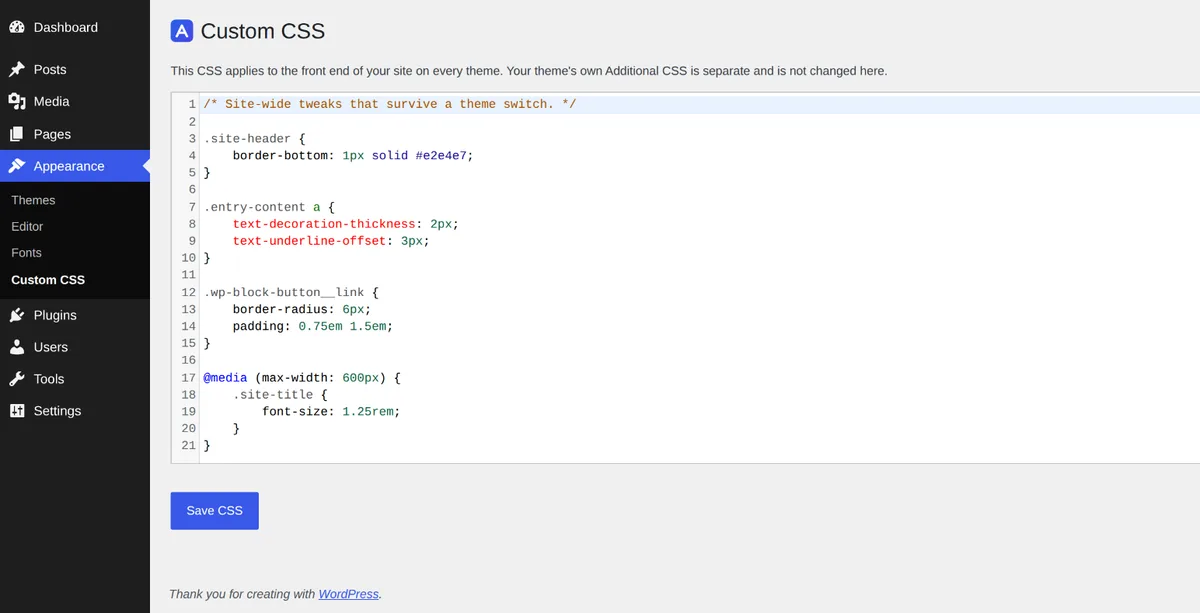
Adminkeep adds Appearance → Custom CSS: one stylesheet that belongs to your site rather than to a theme. It prints on whichever theme is active, so a redesign doesn't take your tweaks with it.
free · Appearance → Custom CSS · classic and block themes
Why Additional CSS disappears
WordPress keeps Additional CSS per theme. On a classic theme it lives in the Customizer; on a block theme it lives in the Site Editor's Styles. Either way it belongs to the theme that was active when you saved it, so switching themes leaves it behind.
Nothing is deleted. Switch back and it returns. WordPress just doesn't carry it across to the new theme, or tell you it stayed behind.
Site-wide CSS, stored by the plugin
The CSS is kept in a site option that belongs to Adminkeep, not to a theme, and printed in the head of every front-end page.
Prints on every theme
Works next to Additional CSS
Front end only
Kept when switched off
WordPress's own code editor
The editor is the one WordPress uses for its own CSS box: line numbers, syntax highlighting, and linting that flags mistakes as you type. If you have switched syntax highlighting off in your profile, you get a plain text box instead.
It sits in the Appearance menu on classic and block themes alike, not several clicks deep in the Site Editor.
-
HTML is refused. Anything that looks like an HTML tag is rejected when you save, with your text kept on screen to fix, so a pasted snippet can't slip a
<script>tag into the page. -
Administrators only. The screen needs the same two permissions that guard WordPress's own Additional CSS (
edit_theme_optionsandedit_css), so editors don't see it. On multisite, only super admins can use it.
From the command line
With WP-CLI, wp adminkeep css get prints the stored CSS and nothing else, so
it can go straight into a file. wp adminkeep css set replaces it from a file
or from standard input, with the same HTML check as the screen.
wp adminkeep feature enable custom_css
wp adminkeep css get > site.css
wp adminkeep css set site.css
cat site.css | wp adminkeep css set
Keep one stylesheet in version control, or copy it from one site to the next. Clearing
stored CSS asks for confirmation first; --yes skips the question.
Turn it on in a minute
- 01
Install Adminkeep from Plugins → Add New Plugin (search "Adminkeep") and activate it.
- 02
Go to Settings → Adminkeep and switch on Custom CSS, in the Appearance group.
- 03
Open Appearance → Custom CSS, add your CSS and press Save CSS.