WordPress two-factor authentication by email, without an app
Published View as Markdown
WordPress two-factor authentication by email: a six-digit code after the password, no authenticator app. The trade-off, and how not to get locked out.
A WordPress login is a username and a password, and passwords leak. They get reused on a site that is later breached, guessed by a bot, or read from a browser on an infected computer. Two-factor authentication adds a second proof, so the password alone stops being enough. WordPress two-factor authentication by email is the simplest kind: after the password, the site emails a six-digit code to the address on the account, and the login finishes only when that code is typed in.
There is no app to install and nothing for each user to set up. That is its strength and, as this guide covers, its limit.
WordPress has no two-factor setting of its own
Look through Settings and the user profile screen and you will not find one. WordPress core checks a username and a password, and that is all. The Application Passwords section on the profile screen is something else: it makes separate passwords for apps that talk to your site, and it does not add a second step to your own login.
So the second step comes from a plugin or from code you write. The code route is real but it is not a snippet. You hook the authenticate filter and stop the login after the password is accepted, then build everything around that pause: a screen for the code, a code stored as a hash that expires, a limit on wrong guesses, and an answer for every other form that can sign a user in. Miss one of those and the second step can be walked around. For most sites a maintained plugin is the safer choice.
Email code or authenticator app
Both are two-factor authentication. They fail in different ways.
An emailed code
- Setup per user: none. Every account already has an address.
- Depends on the site sending email, and on the mailbox.
- Weak point: anyone who can read the mailbox can read the code.
An authenticator app
- Setup per user: each person scans a QR code and stores backup codes.
- Depends on the user’s phone. It keeps working when the site’s email is down.
- Weak point: a lost phone with no backup codes.
An authenticator app is the stronger of the two. Its codes are made on the phone, not sent to it, so there is no email to wait for and no mailbox to break into.
An emailed code is only as safe as the mailbox. If the mailbox uses the same password as the WordPress account, whoever has one has both, and the second step adds nothing. If the mailbox has its own password and its own two-step sign-in, a stolen WordPress password is no longer enough to get in.
Either one is far better than a password alone. Pick the app if every administrator on the site will set one up and keep their backup codes. Pick email when they will not: a second step that is switched on for every administrator beats a stronger one that half of them skipped.
The lockout question
This is what makes site owners hesitate, and it deserves a straight answer: if the site cannot send email, everyone who needs a code is locked out. That includes you.
Three things keep that from happening.
- Check that the site’s email arrives before you start. In a private window, use “Lost your password?” on your own account. If the reset email does not reach your inbox, a login code will not either. WordPress password reset email not sending finds the cause, and WordPress SMTP settings is the usual fix.
- Test in a second window. After you switch two-factor on, stay logged in. Open a private window, log in there and wait for the code. If something is wrong, your first window is still inside the dashboard and can switch it off.
- Know your way back before you need it. It has to be a way that does not involve logging in. With any plugin, the last resort is file access: renaming the plugin’s folder over SFTP deactivates it. A good two-factor feature gives you something gentler than that.
Set it up with Adminkeep
Adminkeep is a free plugin of small features with one switch each. Its two-factor feature is called Two-Factor Login, and it works by email.
- Go to Settings → Adminkeep and switch on Two-Factor Login.
- Choose the roles to ask. Administrators are ticked by default; add editors or shop managers if you want them covered.
- Check your inbox. Switching it on emails you a recovery link. Keep that email.
- Log in from a private window to see it work.
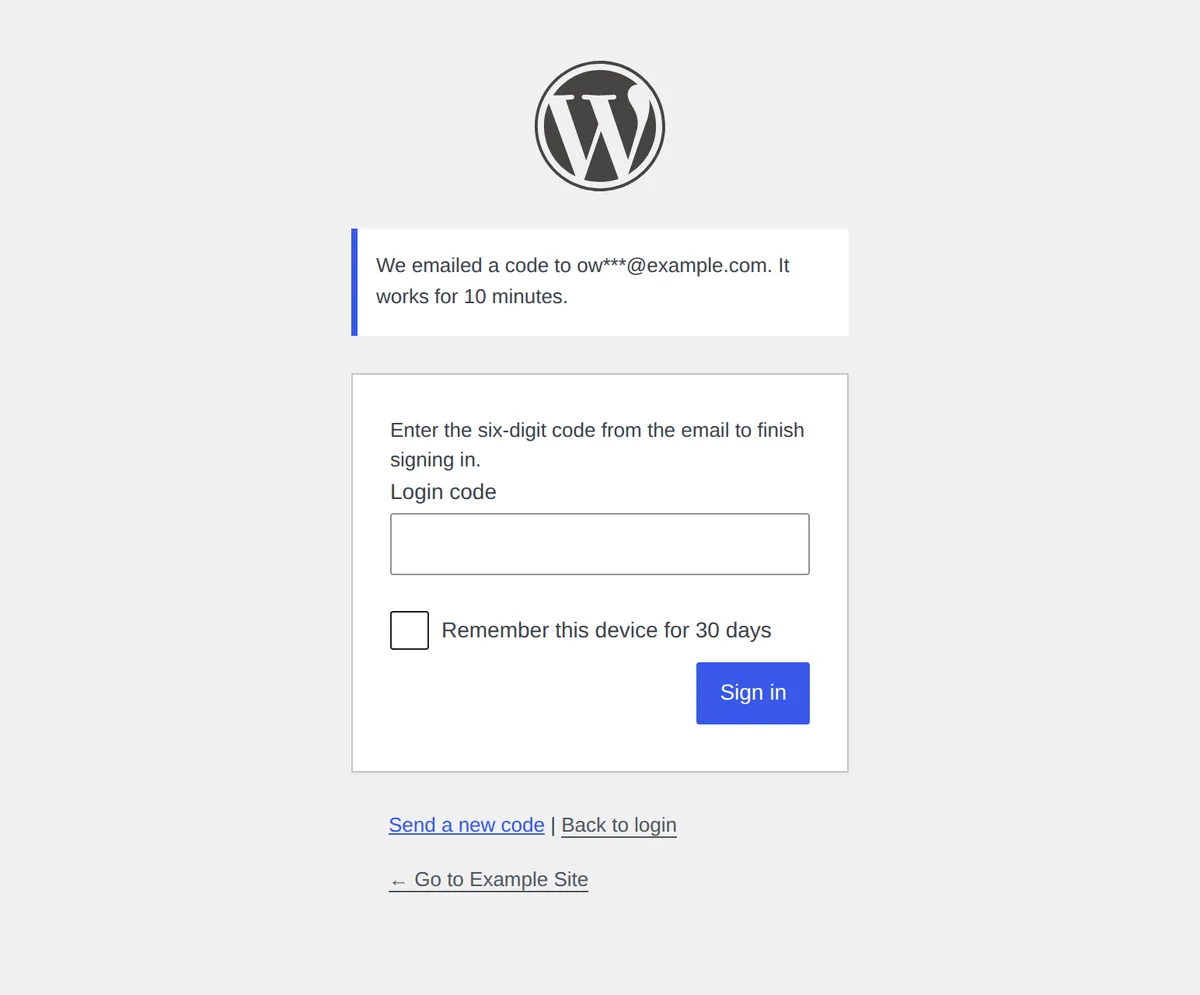
From then on, a user in those roles enters their password and lands on a second screen that shows their email address, partly hidden, and a button: Email me the code. Nothing is sent until they press it. The code works once, for ten minutes. A Remember this device checkbox skips the code in that browser for 30 days, or the number you set, so the extra step shows up about once a month on a computer you use every day.
Guessing is limited. Five wrong codes lock the code step for that account for 15 minutes, and each repeat doubles the wait, up to six hours. At most five code emails go to one user in ten minutes.
The three ways back in
None of them needs you to log in first.
- The recovery link. Opening it shows a page with one button. Pressing the button turns Two-Factor Login off and keeps the roles you chose. The link does not sign anyone in, so the password is still needed. It works once, and every administrator is emailed when it is used, with the time and the IP address.
- WP-CLI:
wp adminkeep feature disable two_factor - wp-config.php:
define( 'ADMINKEEP_DISABLE_TWO_FACTOR', true );
Anyone holding the recovery link can turn the second step off, so treat that email like a password.
What it covers, and what it leaves open
The code is asked for on the main WordPress login screen. Other login forms, such as WooCommerce’s My Account, refuse users in the chosen roles and link them to the main screen, so a stolen password cannot go in by a side door. Customers are not in those roles and log in at My Account as before. A plugin that only moves the login screen to another address works as usual. A plugin that replaces the login screen with its own form cannot show the code screen, so test in a private window and keep the recovery email.
The REST API, application passwords and XML-RPC are not asked for a code, because the apps that use them have no screen to type one into. If nothing on your site uses XML-RPC, close it: see should you disable XML-RPC in WordPress. And since every login attempt starts with a username, it helps to hide your WordPress username from visitors too.
Adminkeep does not offer authenticator apps, backup codes, passkeys or a per-user choice. It sends an emailed code to the roles you pick. If your site needs an app, use a plugin built around one.
The Two-Factor Login docs have every setting, each message a user can see, and how the codes show up in the email log.
Questions people ask
Is two-factor authentication by email secure enough for WordPress?
It is weaker than an authenticator app, because the code is only as safe as the mailbox it goes to. It is far stronger than a password alone: someone who has stolen or guessed the password still needs to read that mailbox. Give the mailbox a password of its own and two-step sign-in.
What happens if the login code email never arrives?
Nobody in the chosen roles is signed in without the code, so a site that cannot send email locks those users out. With Adminkeep there are three ways back that need no login: the recovery link emailed when the feature was switched on, the WP-CLI command wp adminkeep feature disable two_factor, or the ADMINKEEP_DISABLE_TWO_FACTOR constant in wp-config.php.
Does email two-factor work with the WooCommerce My Account login?
With Adminkeep, the code is asked for on the main WordPress login screen. My Account refuses users in the chosen roles and links them to that screen. Customers, who are not in those roles, log in at My Account as before.
Can I use an authenticator app with Adminkeep instead of email?
No. Adminkeep's Two-Factor Login sends the code by email only. If you want an authenticator app, backup codes or passkeys, use a two-factor plugin that offers them.