WordPress SMTP settings: send your site's email through a real mail server
Published Updated View as Markdown
Password resets and form emails go missing because WordPress sends them unauthenticated. The WordPress SMTP settings you need, and how to read a failed send.
A visitor fills in your contact form and you never hear about it. A customer asks for a password reset and nothing arrives. WordPress says the email was sent, and as far as WordPress can tell, it was. The problem is what happens next, and the fix is a handful of WordPress SMTP settings: a server, a port, an encryption type, a username and a password.
This guide covers why the email goes missing, what to collect from your mail provider, the settings for the common ones, and how to read the error when a send fails.
Why WordPress email goes missing
Out of the box, WordPress sends every email through PHP’s mail() function. That function hands the message to whatever mail program the web server has, and that program delivers it directly, with no login and no mail account behind it.
Receiving mail servers have become strict about that kind of message. They check three things:
- SPF: is the server that sent this allowed to send for the domain in the From address?
- DKIM: does the message carry a valid signature from that domain?
- DMARC: what does the domain’s owner want done with mail that fails the first two?
A message from mail() on a web server usually fails all of them. The web server is not in your domain’s SPF record, it signs nothing, and if your domain publishes a DMARC policy, that policy tells the receiver to quarantine or reject the message. On shared hosting there is a second problem: you share an IP address with hundreds of other sites, and its sending reputation is whatever the worst of them has made it.
The result is mail that lands in spam or disappears with no bounce. Nothing in WordPress is broken, so nothing in WordPress reports an error. The same goes for a login code, if you use two-factor authentication by email: a code that never arrives is a login that never finishes. If it is specifically the password reset that never arrives, check the other causes first: WordPress password reset email not sending goes through them in order.
SMTP fixes this by changing who sends the message. Instead of the web server delivering it, WordPress logs in to a real mail server with a username and password, and that server, which is set up to pass SPF and sign with DKIM for your domain, sends it.
What you need from your provider before you start
Whatever you use to configure it, the list is the same. Get these from your mail provider’s SMTP documentation or dashboard:
- Host: the SMTP server’s name, such as
smtp.example.com. - Port: almost always 587 or 465.
- Encryption: TLS (also written STARTTLS) is usual on port 587, SSL on port 465.
- Username: sometimes your email address, sometimes a generated SMTP username that looks nothing like it.
- Password: an SMTP password, an API key used as a password, or an app password. Many providers issue SMTP credentials separately from your account login.
- A From address on a domain you have verified with the provider. This one gets skipped most often. The provider will only send mail for domains you have proved you own, usually by adding DNS records it gives you. Those same records are what make SPF and DKIM pass.
Do the domain verification first. Correct SMTP settings with an unverified From address still fail.
SMTP settings for common providers
These are the host, port and encryption values for the providers people ask about most. Your username and password come from the provider’s dashboard.
| Provider | Host | Port | Encryption |
|---|---|---|---|
| Amazon SES | email-smtp.us-east-1.amazonaws.com | 587 | TLS |
| Brevo | smtp-relay.brevo.com | 587 | TLS |
| Mailgun (US) | smtp.mailgun.org | 587 | TLS |
| Mailgun (EU) | smtp.eu.mailgun.org | 587 | TLS |
| SendGrid | smtp.sendgrid.net | 587 | TLS |
| Postmark | smtp.postmarkapp.com | 587 | TLS |
| Zoho Mail | smtp.zoho.com | 465 | SSL |
| Gmail / Google Workspace | smtp.gmail.com | 587 | TLS |
For Amazon SES the region is part of the host name. The row above is US East (N. Virginia); an account in Europe (Ireland) uses email-smtp.eu-west-1.amazonaws.com, and so on. Use the region your SES identities were verified in.
Providers do change their endpoints occasionally, so treat the provider’s own documentation as the final word.
Setting it up with Adminkeep
Adminkeep is a free plugin made of small features that each have one switch, and SMTP is one of them. If you don’t have it yet, installation takes a minute.
- Open the Adminkeep settings and switch on SMTP in the Email group. The configuration docs cover how the switches work.
- Go to Settings → SMTP. The screen exists only while the feature is switched on.
- Pick your provider from the Provider dropdown. That fills in the server, port and encryption. The preset is not saved as a setting; it only fills those three fields, and you can type the details yourself with “Other”.
- Enter the username and password, the From address and the From name.
- Save.
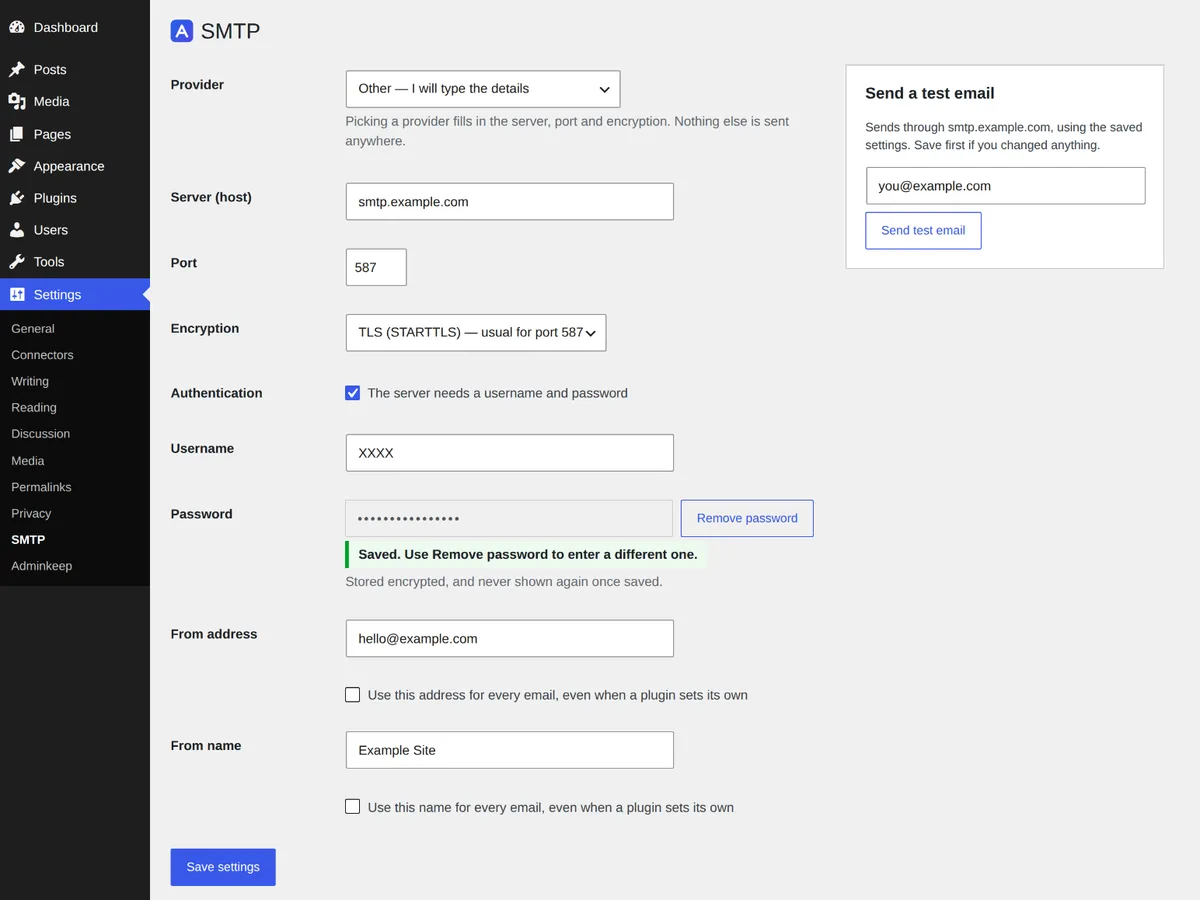
Switching the feature on changes nothing by itself. Until you name a server, WordPress keeps sending email exactly as it did before, and the screen tells you so.
Once a password is saved, the screen never shows it again. The field becomes a disabled row of dots with a Remove password button beside it. Saving the form leaves the password alone; to change it, press Remove password and type the new one.
If another plugin that configures email is active at the same time, the screen points it out. Whichever runs last decides how mail is sent, so use one or the other.
Moving from WP Mail SMTP
If WP Mail SMTP already sends your site’s email through an SMTP server, you don’t have to type its settings in again.
- Switch on SMTP in Adminkeep and open Settings → SMTP. When WP Mail SMTP has an SMTP-mailer setup with a server named, the screen shows a box with a Copy from WP Mail SMTP button.
- Press it. Adminkeep copies the server, port, encryption, username, password, and the From address and name, along with whether the server needs a login and the two “every email” boxes described below. Your current Adminkeep SMTP settings are replaced, except values held in
wp-config.php, which are kept. WP Mail SMTP’s own settings are only read. - If the screen says the password could not be read, enter it in the Password field after copying and save.
- Send a test email from the same screen. Once it arrives, deactivate WP Mail SMTP, so the two plugins don’t both configure the mailer.
The box shows while WP Mail SMTP is active, or while Adminkeep has no server set yet, so it goes away once you have deactivated WP Mail SMTP after copying.
Only an SMTP connection can be copied. If WP Mail SMTP sends through a provider’s API, such as SendLayer or the Gmail API, there is no server and password to bring across, and the box does not appear. Get SMTP credentials from your provider and enter them with the table above instead. WP Mail SMTP’s Auto TLS and Return Path options have no Adminkeep equivalent and are not copied.
From a shell, wp adminkeep smtp import wp-mail-smtp --dry-run lists what would be copied without changing anything, and the same command without --dry-run copies it. The WP-CLI docs cover the output.
Keeping the credentials in wp-config.php
Every setting can be defined as a constant in wp-config.php instead of being typed into the form:
define( 'ADMINKEEP_SMTP_HOST', 'smtp.example.com' );
define( 'ADMINKEEP_SMTP_PORT', 587 );
define( 'ADMINKEEP_SMTP_ENCRYPTION', 'tls' );
define( 'ADMINKEEP_SMTP_USER', 'XXXX' );
define( 'ADMINKEEP_SMTP_PASS', 'XXXX' );
define( 'ADMINKEEP_SMTP_FROM', '[email protected]' );
define( 'ADMINKEEP_SMTP_FROM_NAME', 'Example Site' );
What each one holds:
ADMINKEEP_SMTP_HOST: the server’s host name.ADMINKEEP_SMTP_PORT: the port, as a number.ADMINKEEP_SMTP_ENCRYPTION:tls,sslornone.ADMINKEEP_SMTP_USER: the SMTP username.ADMINKEEP_SMTP_PASS: the SMTP password.ADMINKEEP_SMTP_FROM: the From address.ADMINKEEP_SMTP_FROM_NAME: the From name.
Put them above the line that reads /* That's all, stop editing! */.
A constant wins over the saved value, field by field, so you can define only the password and keep everything else in the form. A value set in wp-config.php is not saved to the database, and the settings form does not display it: the field is disabled and a note under it names the constant that holds it. This is the stronger setup. The credentials never enter the database, so they are in no database backup and no export.
Send a test email and read the server’s reply
Beside the settings is a panel called Send a test email. It uses the saved settings, so save first if you changed anything. Enter an address, send, and one of two things happens.
If the server accepts the message, the panel says so and tells you to check the inbox and its spam folder. Accepted is not the same as delivered to the inbox, which is why the From domain’s SPF and DKIM records still matter.
If it fails, the panel shows the error and opens a section called What the server said: the actual SMTP conversation, with your username and password scrubbed out. Most failures are one of three:
- A 535 error means the server rejected the login. The username or password is wrong. Check whether your provider wants a generated SMTP credential or an app password rather than your account password.
- A timeout means the site never reached the server. Either the host or port is wrong, or your web host blocks outbound SMTP connections, which some do. The wait is capped at 15 seconds so that a dead mail server cannot hang a checkout or a form submission for minutes. If the settings are right and it still times out, ask your host whether the port is open.
- A rejected From or sender address means the login worked and the server refused the message because the From address is not on a domain you have verified with the provider. Finish the domain verification, or use an address on a domain that is verified.
From address, From name, and the two “every email” boxes
By default WordPress sends as wordpress@yourdomain with the name “WordPress”. The From address and From name you save replace those defaults.
They don’t replace a sender that a plugin has chosen for itself. WooCommerce is the usual case: it has its own “from” settings for order emails, and those are respected (it also keeps its own log of order emails). Most of the time that is what you want.
It stops being what you want when the plugin’s address is on a domain your provider has not verified, because the server will reject those emails while everything else goes through. That is what the two boxes are for:
- Use this address for every email, even when a plugin sets its own
- Use this name for every email, even when a plugin sets its own
Tick the first and every email leaves with your verified address, WooCommerce’s included. The plugin applies its sender late in the process, so a plugin that sets its own at send time cannot undo it.
Gmail, Google Workspace and Microsoft 365
Gmail and Google Workspace work, with one condition: Google needs an app password here, not your normal password. Create one in your Google account under Security, with 2-step verification on, and use it as the SMTP password.
Microsoft 365 and Outlook.com are not supported. Microsoft now requires signing in through Microsoft (OAuth) for SMTP, and this feature does not do OAuth. There is no preset for it because a preset that cannot work is worse than none. If your mail has to go through a Microsoft account, a dedicated SMTP plugin that handles the Microsoft sign-in is the better choice.
What it does not do
This is generic SMTP and nothing more, on purpose:
- No OAuth. No “sign in with your provider” flows, which is why Microsoft 365 is out.
- No provider HTTP APIs. It talks SMTP to a server. If your provider offers only an API, this is not the tool for it.
- No history of its own. SMTP remembers only the last failed send, shows it at the top of Settings → SMTP, and clears it once mail is flowing again. For a full history of sent and failed email, turn on Adminkeep’s email log, a separate feature; how to check if WordPress sent an email shows how to read it.
- No silent fallback to PHP
mail(). If the server refuses an email, that email fails, and the screen shows the server’s own error. Nothing is quietly re-sent another way.
That last one is deliberate. A fallback sounds safe, but it sends the message down the same unauthenticated route that was losing your email in the first place, and it hides the fact that your SMTP setup is broken. You would find out weeks later, from a customer. A send that fails loudly, with the reason on the screen, gets fixed the same day.
Switching the feature off returns email to the server’s default. Your settings are kept, and deleting the plugin keeps them too unless you have asked Adminkeep to delete its data.
Questions people ask
What SMTP settings does WordPress need to send email?
Six things from your mail provider: the SMTP host, the port, the encryption type, a username, a password, and a From address on a domain you have verified with that provider. The port is almost always 587 with TLS or 465 with SSL. Verify the domain first, because correct settings with an unverified From address still fail.
Why do WordPress emails go to spam or not arrive at all?
By default WordPress sends email through PHP's mail() function, which delivers from the web server with no login and no mail account behind it. That mail usually fails the SPF, DKIM and DMARC checks receiving servers run, so it lands in spam or disappears with no bounce. SMTP fixes it by having WordPress log in to a real mail server that is set up to pass SPF and sign with DKIM for your domain.
Can WordPress send email through Gmail SMTP?
Yes. The host is smtp.gmail.com on port 587 with TLS, and the same applies to Google Workspace. Google needs an app password here, not your normal password: create one in your Google account under Security, with 2-step verification on, and use it as the SMTP password.
What does a 535 error mean when WordPress sends email over SMTP?
A 535 error means the mail server rejected the login, so the username or password is wrong. Check whether your provider wants a generated SMTP credential or an app password instead of your account password.
Where is my SMTP password kept?
Encrypted in your site's database, which protects it in database backups. The stronger option is to define ADMINKEEP_SMTP_PASS, and the other ADMINKEEP_SMTP_* constants if you like, in wp-config.php: values set there are not saved to the database, and the settings form does not display them.
The screen says my saved password can no longer be read. What happened?
The stored password is encrypted using your site's security keys, the ones in wp-config.php. If those keys change, the saved password cannot be opened any more. Open Settings → SMTP and enter it again. A password held in a constant is not affected.
The test email was accepted but never arrived. Now what?
Check the spam folder first. If it is there, the SMTP settings are fine and the problem is authentication for your domain: confirm in your provider's dashboard that the domain is verified and that the SPF and DKIM records it gave you are in your DNS.
Does fixing email help with spam signups?
No, that is a separate problem. Reliable email only means the notifications about those signups now reach you. See how to stop spam user registrations for that.