Custom CSS
How Adminkeep's Custom CSS works: the Appearance screen, the live editor in the admin bar, what is refused, who can edit it, the REST API route and WP-CLI.
Custom CSS gives your site one stylesheet that belongs to the site rather than to a theme. It prints on whichever theme is active, so switching themes doesn’t leave your tweaks behind. This page is the reference; the custom CSS plugin page has the overview, and why WordPress custom CSS disappears explains the problem it solves.
Turn it on
Go to Settings → Adminkeep and switch on Custom CSS, in the Appearance group. You then have two places to edit the same CSS:
- Appearance → Custom CSS, a screen in the admin, next to Header & Footer Code.
- Edit CSS in the admin bar on your site, which opens the live editor over the page you are looking at (since 2.1.0).
Both save to the same place, so use whichever suits the change.
The Custom CSS screen
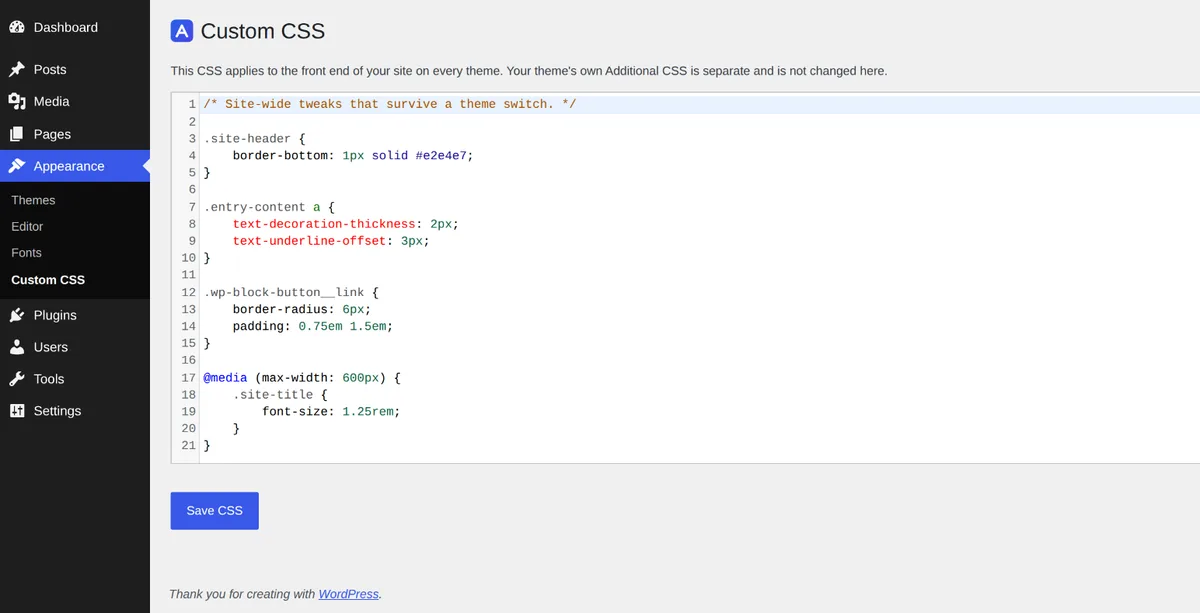
The editor is the one WordPress uses for its own CSS box: line numbers, syntax highlighting and linting that flags mistakes as you type. If you have switched syntax highlighting off in your profile, you get a plain text box instead.
Press Save CSS. Since 2.2.0 the screen saves without reloading: “CSS saved.” appears under the heading and the editor stays where you were. If the save is refused, the reason appears in the same place and what you typed is left untouched. If your login has expired while the page was open, the message says so: copy your CSS, reload the page, and save again.
The Live preview box beside the editor has an Open live editor button, which opens your home page with the live editor already open.
Edit on the live site
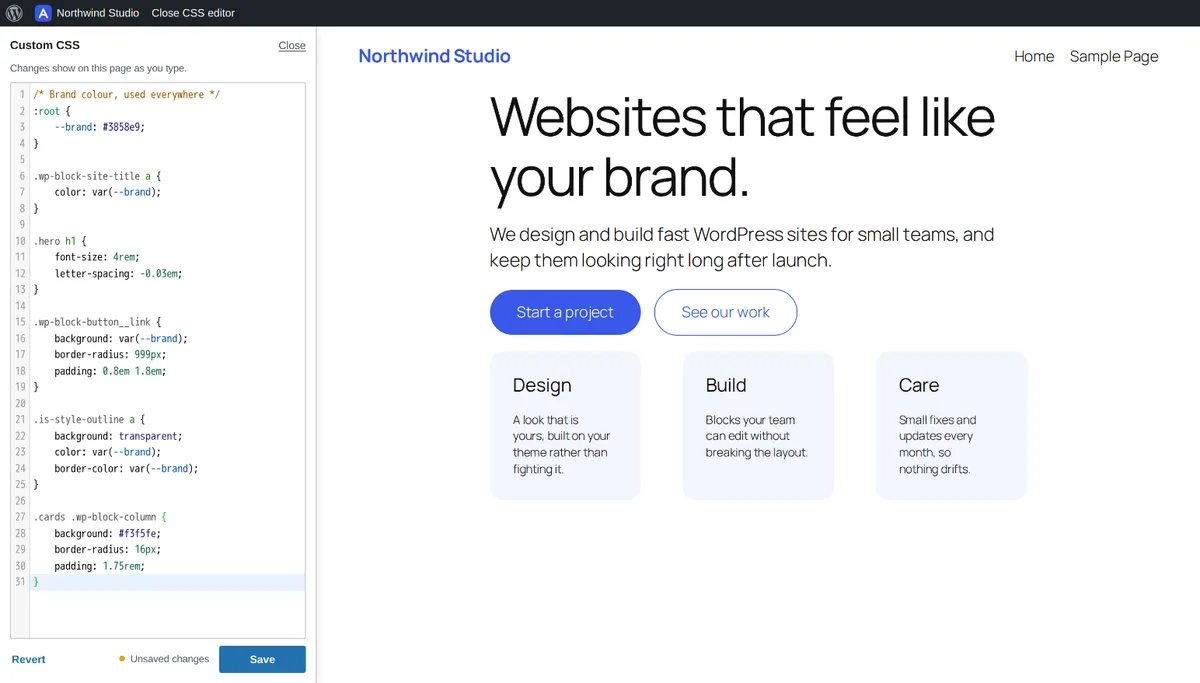
On any page of your site, click Edit CSS in the admin bar. The page reloads with a code panel docked on the left, holding your stored CSS in the same code editor. On a narrow window the panel becomes a sheet along the bottom of the screen instead.
- The page restyles as you type. A moment after you stop typing, the page you are looking at picks up the new CSS. Only your browser sees it: visitors keep getting the saved CSS until you press Save.
- Save (or Ctrl+S / Cmd+S) stores the CSS with the same checks as the screen. A dot and “Unsaved changes” show while the panel holds edits you haven’t saved.
- Revert puts the last saved CSS back in the panel, and the page with it.
- The panel stays open while you browse. Follow a link, submit a form or go back, and the panel is still there, so you can check a change on other pages. Unsaved edits don’t travel with you: your browser asks before you leave a page that has them.
- Close in the panel, or Close CSS editor in the admin bar, ends editing. Logging out ends it too, and so does closing the browser.
Ordinary page views load nothing extra: the editor and its script are only loaded on pages you view while editing.
On a phone, WordPress hides most admin bar items, so Edit CSS isn’t shown there. Use Appearance → Custom CSS → Open live editor instead.
Don’t want Edit CSS in the admin bar? Untick Show Edit CSS in the admin bar in the
Custom CSS settings (Settings → Adminkeep → Custom CSS). It is on by default. With it off, the
live editor still opens from the Custom CSS screen. From a shell:
wp adminkeep feature set custom_css admin_bar=false.
What it prints, and where
The CSS is kept in a site option that belongs to Adminkeep, not to a theme, and printed in the
<head> of every front-end page, on classic and block themes alike.
- Your theme’s Additional CSS is left alone. Use both if you like. Adminkeep’s CSS prints after it, so when the two set the same property with equally specific selectors, Adminkeep’s rule wins.
- Front end only. It isn’t loaded in the admin or in the block editor, which is why the live editor works on the site itself.
- An empty stylesheet prints nothing.
What is refused, and who can edit
HTML is refused. Anything that looks like an HTML tag is rejected when you save, from the
screen, the live editor, WP-CLI or the REST API, and nothing is written. A pasted snippet can’t
slip a <script> tag into the page. Scripts and tags belong in
Header & Footer Code.
Administrators only. The screen, the live editor, the admin bar item and the REST route all
need the two permissions that guard WordPress’s own Additional CSS: edit_theme_options and
edit_css. Editors don’t have them, and on multisite only super admins do.
REST API
Since 2.1.0, the CSS can be read and saved at /wp-json/adminkeep/v1/custom-css. WordPress
application passwords work only over the REST API, so this is how a script, a deploy job or an
AI agent can update a site’s CSS without logging in to wp-admin or having SSH access.
# Read the stored CSS.
curl -u 'admin:XXXX XXXX XXXX XXXX XXXX XXXX' \
  https://example.com/wp-json/adminkeep/v1/custom-css

# Replace it.
curl -u 'admin:XXXX XXXX XXXX XXXX XXXX XXXX' \
  -H 'Content-Type: application/json' \
  -d '{"css": ".site-title { letter-spacing: 0.02em; }"}' \
  https://example.com/wp-json/adminkeep/v1/custom-css
Create the application password under Users → Profile → Application Passwords, for a user who can edit the CSS.
| Request | What it does |
|---|---|
GET | Returns {"css": "..."}, the stored CSS byte for byte |
POST (or PUT, PATCH) with {"css": "..."} | Replaces the whole stylesheet and returns what was stored, in the same shape. An empty string clears it |
- CSS containing markup is a
400with the codeadminkeep_css_markupand the same message the screen shows. Nothing is written. - A request without
css, or with something other than a string, is a400from WordPress. - A user without both permissions gets a
401(not signed in) or403with the codeadminkeep_css_forbidden. - The route exists only while the feature is on; with it off, WordPress answers
404.
The screen, the live editor, WP-CLI and the route all save through the same code, so they can’t disagree about what is allowed.
WP-CLI
wp adminkeep css get > site.css
wp adminkeep css set site.css
css get prints the stored CSS exactly as stored, and css set replaces it from a file or
standard input, with the same HTML check. Clearing stored CSS asks first; --yes skips the
question. The full reference is Custom CSS in the WP-CLI docs.
Switching it off, and deleting the plugin
Switching the feature off stops the CSS printing and removes the menu item, the admin bar item and the REST route. The CSS is kept, so switching it back on brings it back.
Since 2.2.0, deleting the plugin keeps it too, so reinstalling Adminkeep brings your CSS back. It is removed only if Delete all Adminkeep data when the plugin is deleted is switched on under Plugin settings.