Header & Footer Code
How Adminkeep's Header & Footer Code works: the Head, Body open and Footer boxes, where each prints, who can edit them, the 64 KB limit, REST API and WP-CLI.
Header & Footer Code keeps the snippets services ask you to paste into your site (analytics tags, a tag manager, site verification meta tags, a chat widget) in three boxes that belong to the site rather than the theme. It prints them on the front end exactly as you saved them, on whichever theme is active. This page is the reference; the header and footer code plugin page has the overview. New in 2.0.0; readable and writable over the REST API since 2.2.0.
Turn it on
Go to Settings → Adminkeep and switch on Header & Footer Code, in the Appearance group. The screen is then at Appearance → Header & Footer Code, next to Custom CSS.
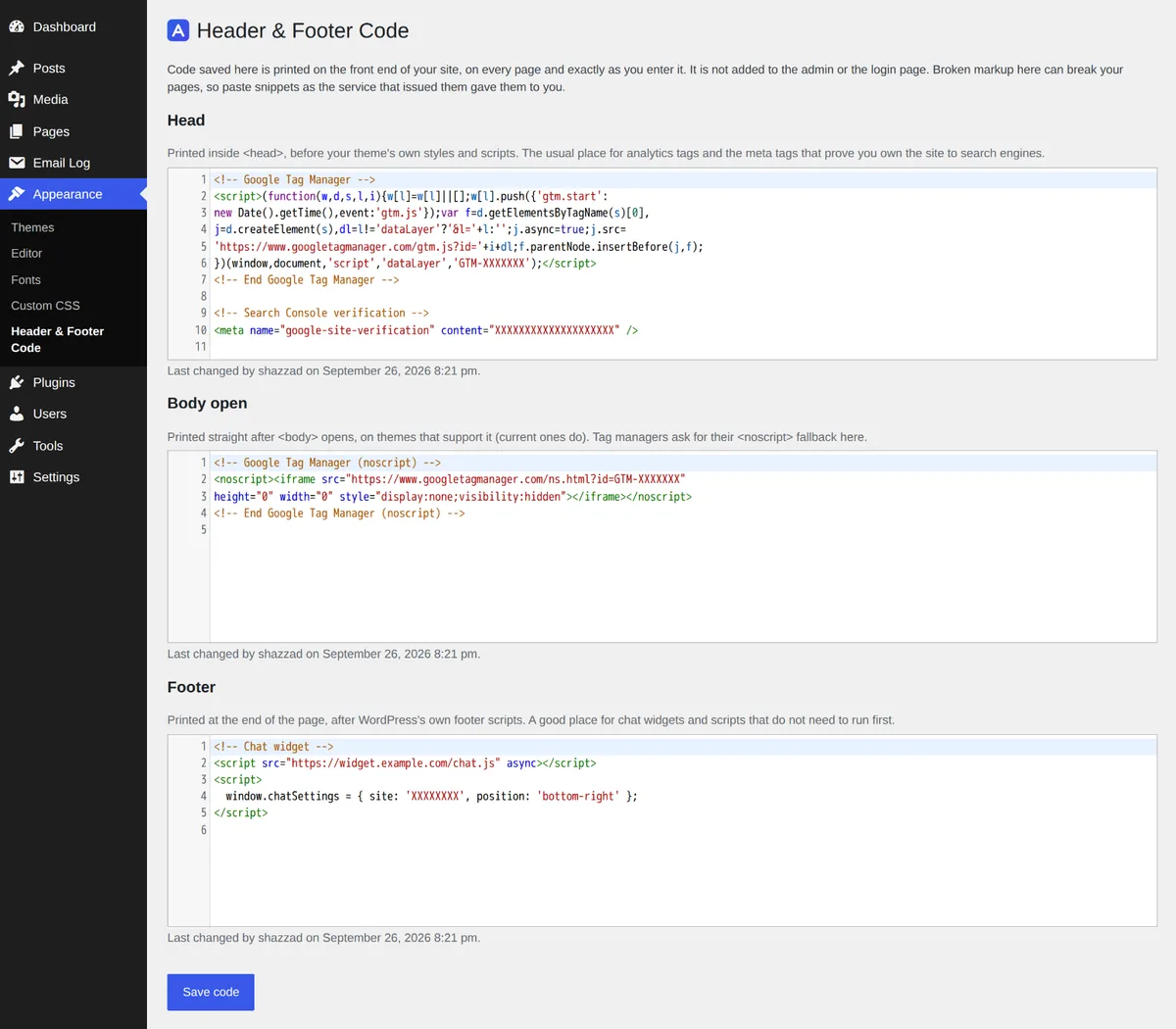
The three boxes
| Box | Where it prints | Typical use |
|---|---|---|
| Head | Near the top of <head>, before your theme’s stylesheets and scripts (wp_head, priority 1) | The Google tag (gtag.js), Google Tag Manager’s main snippet, verification meta tags |
| Body open | Straight after <body> opens (wp_body_open) | Tag Manager’s <noscript> fallback, anything a service says goes “immediately after the opening body tag” |
| Footer | At the end of the page, after WordPress’s own footer scripts (wp_footer, priority 100) | Chat widgets, scripts that don’t need to run first, scripts that expect jQuery or another library already loaded |
Each box uses WordPress’s code editor in HTML mode, with line numbers and highlighting. If you have switched syntax highlighting off in your profile, you get plain text boxes instead.
Body open needs the theme’s help. WordPress prints that spot only where the theme calls
wp_body_open(). Block themes and classic themes made since WordPress 5.2 (2019) do. On an
older classic theme the Body open box prints nothing; view the page source to check, and use
the Footer box as a fallback if your service allows it.
An empty box prints nothing at all.
What it prints, and where it doesn’t
The code is printed exactly as saved: no escaping, no reformatting, nothing added but a line break. It prints on every front-end page, for every visitor, logged in or not.
It is not added to the admin, the login page, feeds, the REST API or embeds. So a snippet with
broken markup can spoil the look of the site, but it can’t stop you opening this screen to fix
it. wp adminkeep feature disable header_footer_code stops all three boxes printing from a
shell, and keeps the code.
Who can edit it
The menu item, the screen and the save all need two capabilities: manage_options and
unfiltered_html. Code here runs for every visitor, so it is kept to the people WordPress
already trusts to post raw HTML.
- Single site: administrators. Editors hold
unfiltered_htmlbut notmanage_options, so they don’t see the screen. - Multisite: super admins only, because WordPress gives
unfiltered_htmlto nobody else. DISALLOW_UNFILTERED_HTMLset to true: nobody, from the screen or with WP-CLI’s--user.
Code saved earlier keeps printing whoever can or can’t edit it now.
Last changed
Under each box: Last changed by a display name and the date and time, in your site’s
format. A change made with wp adminkeep code set without --user says WP-CLI. A box’s
line moves only when that box’s code changed, so saving the screen with only the footer edited
leaves the Head and Body open lines as they were. A box that has never been saved has no line.
Saving
Press Save code to save all three boxes. Since 2.2.0 the screen saves without reloading: “Code saved.” appears under the heading, and each box you changed gets its new Last changed line. If the save is refused, the reason appears in the same place and all three boxes keep what you typed. If your login has expired while the page was open, the message says so: copy your code, reload the page, and save again.
Limits and refused saves
Each box holds up to 64 KB (65,536 bytes). A snippet from an analytics or chat service is a
few kilobytes; anything near the limit is usually a whole library pasted inline, which belongs
in a file loaded with <script src="…"></script>.
A save is refused as a whole, with a message, when:
- a box is over 64 KB (the message names the box and its size);
- a box holds characters that aren’t valid UTF-8, which the database may refuse or cut short;
- the database doesn’t accept the change (the message includes the database’s own reason, such as a packet-size limit).
Nothing is written when a save is refused, and all three boxes are shown back to you as you typed them, so nothing is lost.
REST API
Since 2.2.0, the three boxes can be read and saved at
/wp-json/adminkeep/v1/header-footer-code. WordPress application passwords work only over the
REST API, so this is how a script, a deploy job or an AI agent can roll the same tags out to a
site without logging in to wp-admin or having SSH access. It is the twin of the
Custom CSS route.
# Read all three boxes.
curl -u 'admin:XXXX XXXX XXXX XXXX XXXX XXXX' \
  https://example.com/wp-json/adminkeep/v1/header-footer-code

# Replace the Head box and clear the Footer box; Body open is left as it is.
curl -u 'admin:XXXX XXXX XXXX XXXX XXXX XXXX' \
  -H 'Content-Type: application/json' \
  -d '{"head": "<meta name=\"google-site-verification\" content=\"XXXX\">", "footer": ""}' \
  https://example.com/wp-json/adminkeep/v1/header-footer-code
Create the application password under Users → Profile → Application Passwords, for a user who can edit the code.
| Request | What it does |
|---|---|
GET | Returns each box, head, body and footer, with its code byte for byte, changed_by (a user ID, 0 for WP-CLI or never saved) and changed_at (a Unix timestamp, 0 if never saved) |
POST (or PUT, PATCH) with any of head, body, footer | Replaces the boxes you send and keeps the ones you leave out. An empty string clears a box. Returns all three in the GET shape |
Only boxes whose code actually changed get a new Last changed stamp, naming the user the application password belongs to.
A save is refused, and nothing is written, when:
- the request names none of the three boxes:
400, codeadminkeep_code_missing; - a box is over 64 KB or isn’t valid UTF-8:
400, with the same message the screen shows; - a value isn’t a string:
400from WordPress; - the user lacks
manage_optionsorunfiltered_html:401(not signed in) or403, codeadminkeep_code_forbidden; - the database doesn’t accept the change:
500, codeadminkeep_code_not_saved.
The route exists only while the feature is on; with it off, WordPress answers 404. The screen,
WP-CLI and the route all save through the same code, with the same checks.
Switching it off, and deleting the plugin
Switching the feature off stops the code printing and removes the menu item. The code is kept, so switching it back on brings it back.
Since 2.2.0, deleting the plugin keeps it too, so reinstalling Adminkeep brings your code back. It is removed only if Delete all Adminkeep data when the plugin is deleted is switched on under Plugin settings.
WP-CLI
wp adminkeep code get head > head.html
wp adminkeep code set head analytics.html
cat gtm-noscript.html | wp adminkeep code set body
printf '' | wp adminkeep code set footer --yes| Command | What it does |
|---|---|
wp adminkeep code get <head|body|footer> | Prints one box’s stored code, and nothing else |
wp adminkeep code set <head|body|footer> [<file>] | Replaces one box from a file, or standard input |
get prints byte for byte what is stored, with no newline added, so its output can be piped
back into set unchanged. set leaves the other two boxes alone, applies the same 64 KB and
UTF-8 checks as the screen, and asks before clearing a box that holds code unless you pass
--yes. The full reference is Header & Footer Code in
the WP-CLI docs.
Adding a common snippet
How to add Google Tag Manager to WordPress walks through the two GTM snippets box by box, adding GA4, and checking that the tags are live.