Header and footer code for WordPress that stays with your site
Adminkeep adds Appearance → Header & Footer Code: three boxes for the snippets services ask you to paste into your site. Analytics tags, Google Tag Manager, site verification, a chat widget. They belong to the site rather than the theme, so a theme update or a new theme doesn't take them with it.
free · Appearance → Header & Footer Code · classic and block themes
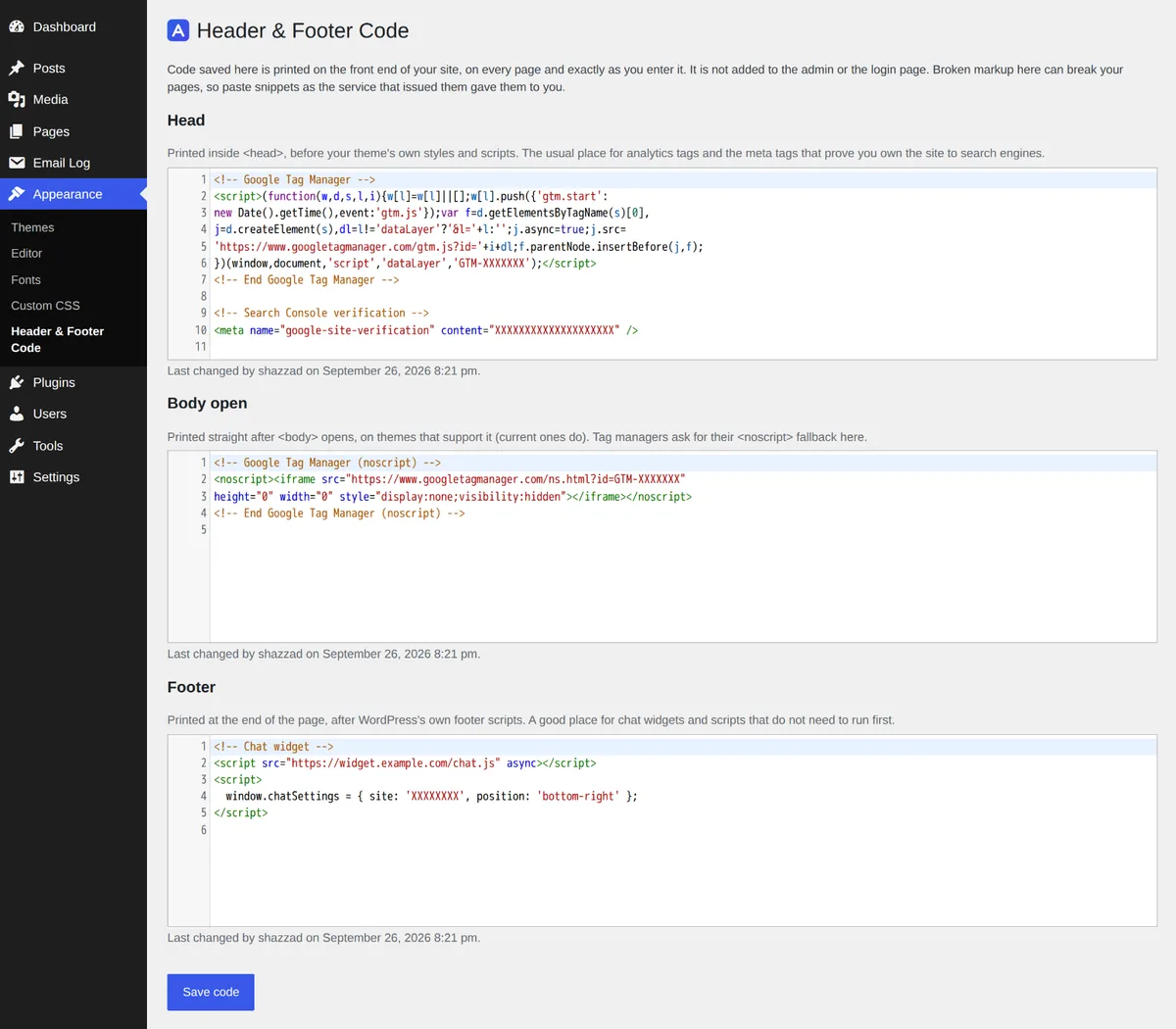
Three boxes, where snippets ask to go
A service's install instructions nearly always name one of three places. There is one box for each, so you paste the snippet where it says and nowhere else.
Head
Printed near the top of <head>, before your theme's stylesheets
and scripts. For the Google tag, Tag Manager's main snippet, and the meta tags that
prove the site is yours to Search Console, Bing or Pinterest.
Body open
Printed straight after <body> opens, on themes that support it
(current ones do). Tag Manager asks for its <noscript> fallback
here.
Footer
Printed at the end of the page, after WordPress's own footer scripts. For chat widgets, and scripts that don't need to run first or expect a library such as jQuery to be loaded already.
Kept with the site, not the theme
Pasting a snippet into header.php works until the theme updates and
overwrites the file. Here the code is kept in a site option that belongs to Adminkeep,
and printed by WordPress's own hooks.
Prints on every theme
Front end only
Who changed it, and when
Kept when switched off, or deleted
Printed exactly as you saved it
A tracking snippet stops working if anything rewrites it, so nothing does. What you save is what the page gets, character for character. That is also why the screen is kept to the people WordPress already trusts with raw HTML.
-
Administrators who may post unfiltered HTML. Editing needs both
manage_optionsandunfiltered_html. On multisite that means super admins only, and withDISALLOW_UNFILTERED_HTMLset, nobody. Code already saved keeps printing. -
Up to 64 KB a box. A snippet from an analytics or chat service is a few kilobytes. For anything bigger, upload the script as a file and load it with
<script src="…">. -
A refused save loses nothing. The screen saves without reloading the page. If a box is too large, or the database won't take the change, it says why and leaves all three boxes as you typed them.
-
Broken markup shows on the site. Paste snippets as the service gave them. If a page looks wrong after a save, open the screen (the code doesn't print in the admin) and fix or clear the box.
Styles go in the sibling feature: Custom CSS keeps site-wide CSS through theme changes the same way, and refuses HTML so a script can't slip in there.
From the command line, or over REST
With WP-CLI, wp adminkeep code get prints one box byte for byte, so it can go
straight into a file and back. wp adminkeep code set replaces one box from a
file or from standard input, and leaves the other two alone.
wp adminkeep feature enable header_footer_code
wp adminkeep code set head analytics.html
cat gtm-noscript.html | wp adminkeep code set body
wp adminkeep code get footer > footer.html
Roll the same tags out to every site you run, or keep them in version control. Clearing a
box that holds code asks first; --yes skips the question. With
--user, that user needs the same two permissions as the screen.
No shell? Since 2.2.0 the boxes can be read and saved at
/wp-json/adminkeep/v1/header-footer-code with a WordPress application
password. Send only the boxes you want to change; the others are kept, and an empty
string clears one. The same permissions and limits apply as on the screen.
curl -u 'admin:XXXX XXXX XXXX XXXX XXXX XXXX' \
  -H 'Content-Type: application/json' \
  -d '{"head": "<meta name=\"google-site-verification\" content=\"XXXX\">"}' \
https://example.com/wp-json/adminkeep/v1/header-footer-codeTurn it on in a minute
- 01
Install Adminkeep from Plugins → Add New Plugin (search "Adminkeep") and activate it.
- 02
Go to Settings → Adminkeep and switch on Header & Footer Code, in the Appearance group.
- 03
Open Appearance → Header & Footer Code, paste each snippet into its box and press Save code.