A free email log for WordPress that shows what failed
Adminkeep records every email your site sends (recipient, sender, subject, headers, attachment names and content) and marks each one Sent, Failed or Unconfirmed. When one fails, the error that came back is kept with it.
free · Tools → Email Log · WordPress 6.9+
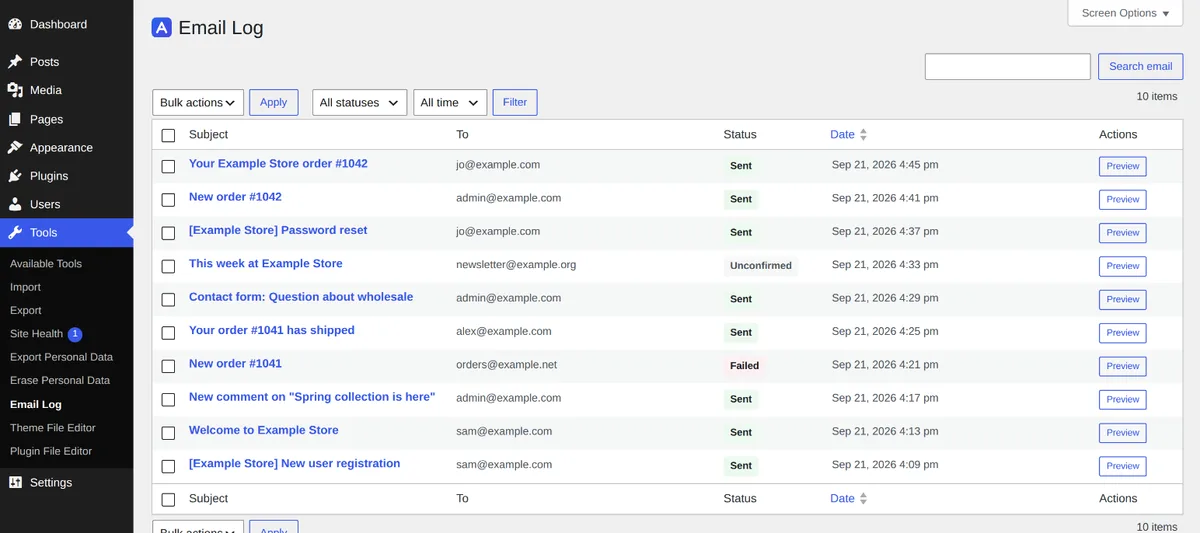
Sent, Failed or Unconfirmed at a glance
Each email gets one of three statuses, and each one means something specific.
Sent
The mail server accepted the email. That is not proof it reached the inbox: the receiving server can still file it as spam or drop it.
Failed
WordPress tried and got an error back. The error is kept and shown in the preview, with any SMTP username or password inside it scrubbed out.
Unconfirmed
WordPress didn't hear back either way, usually because another plugin took over sending or queued the email for later. It may still have gone out.
Filter, search and preview
Filter by status and by period (the last hour up to 30 days, or a date range), and search by recipient, sender or subject. Filtered views live in the address bar, so "failed in the last day" can be bookmarked and checked each morning.
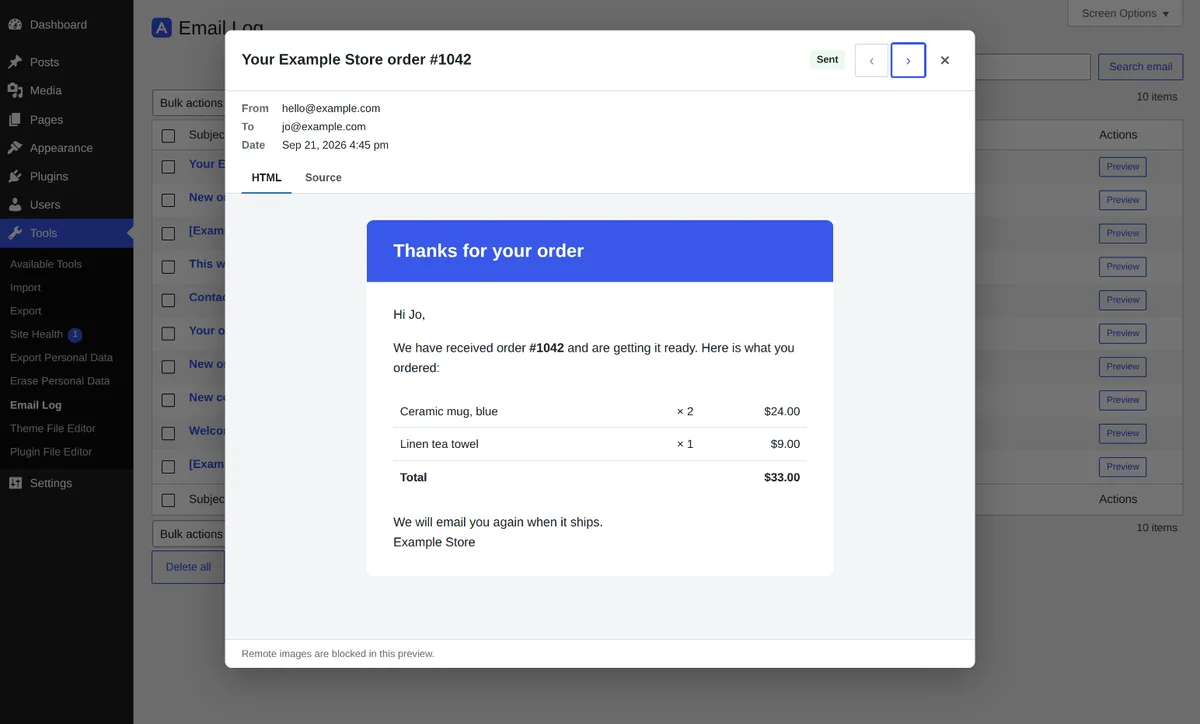
Click a subject to open the email as it was sent, with its Cc, Bcc, Reply-To, attachment names and, for a failed email, the error. The preview is sandboxed: scripts don't run and remote images aren't loaded.
Works with any mailer, or none
The email log only listens. It records what wp_mail() was asked to send and
changes nothing about how the email is sent, so it works with Adminkeep's own SMTP
feature, with another SMTP plugin, or with no SMTP setup at all.
Each email is written to the log the moment wp_mail() is called, before
anything else happens. An email that fails partway through still leaves a row behind.
If the log shows failures and you want a proper mail server, Adminkeep also includes SMTP settings with presets for common providers.
Sign-in and reset links kept out of the log
Password-reset, sign-in and account-activation links, in their common formats, are replaced with
[link removed] before an email is stored. The rest of the content is kept.
Would rather keep no content at all? Untick one setting and the log stores only the envelope: recipient, sender, subject, headers, attachment names and status.
Only administrators can open the log, and WordPress's personal-data export and erase tools cover it.
Keep a week or up to two years
Choose 7, 14, 30, 60 or 90 days, 1 year or 2 years. The default is 30 days. Older entries are deleted once a day, in batches.
The log also keeps to its newest 10,000 rows, so a burst of sends can't grow it without limit between purges. Uninstalling the plugin removes the log entirely.
Moving from the Email Log plugin
Already running the Email Log plugin? Adminkeep can read its table and copy the history in, with one button under Tools → Email Log or one WP-CLI command. The other plugin's log is left untouched.
Sign-in links are removed on the way in, emails older than your retention setting are skipped, and running the copy again brings only what is new.
From WP-CLI
List, read, count, purge and import from the command line. Reading works whether or not logging is switched on, so what was logged stays reachable.
wp adminkeep email-log list --status=failed --format=json
wp adminkeep email-log get 482
wp adminkeep email-log count --status=failed
wp adminkeep email-log purge --older-than=90 --yes
wp adminkeep email-log import email-log --dry-runTurn it on in a minute
- 01
Install Adminkeep from Plugins → Add New Plugin (search "Adminkeep") and activate it.
- 02
Go to Settings → Adminkeep and switch on Email Log, in the Email group.
- 03
Every email from then on appears under Tools → Email Log.