WordPress contact form with Cloudflare Turnstile, no form plugin
Published View as Markdown
A WordPress contact form with Cloudflare Turnstile, without a form plugin: get the keys, place the block, and see each message in Email Log.
A small site usually needs one form: a name, an email address and a message. A form builder can do that, and a great deal more, but you then carry a second plugin, its settings, its entries table and its updates for a single contact page. Adminkeep has a Contact Form feature (2.3.0 and later) that does only this. This guide sets it up with Cloudflare Turnstile as the spam check, and shows the reCAPTCHA v3 alternative.
Why Turnstile, when the form works without it
An open contact form gets spam within days. The spam check is what keeps the inbox usable, so the form always has one. Since 2.4.0 it starts with WordPress Nonce: a code WordPress puts in the form and checks when it is sent. It needs no keys and no outside service, so the form works as soon as you switch the feature on. It stops bots that post to the form without loading the page, but not ones that load it first.
The nonce also expires within a day. On a site that caches its pages, with a caching plugin, your host’s cache or a CDN that caches whole pages, a cached page keeps an old nonce, and every message sent from it after that is refused with “This page has expired”. That is the case for Turnstile: it carries no nonce, so cached pages keep working, and it is the stronger check. Google reCAPTCHA v3 does the same job. Both need a free account with that provider.
Set up Cloudflare Turnstile
- Log in to the Cloudflare dashboard and open Turnstile. Choose Add widget.
- Give it a name, and add your site’s domain (for example
example.com) as the hostname. Turnstile keys are bound to that domain, so a key for one site does not work on another. - Pick the Managed widget mode, and create it.
- Copy the Site key and the Secret key.
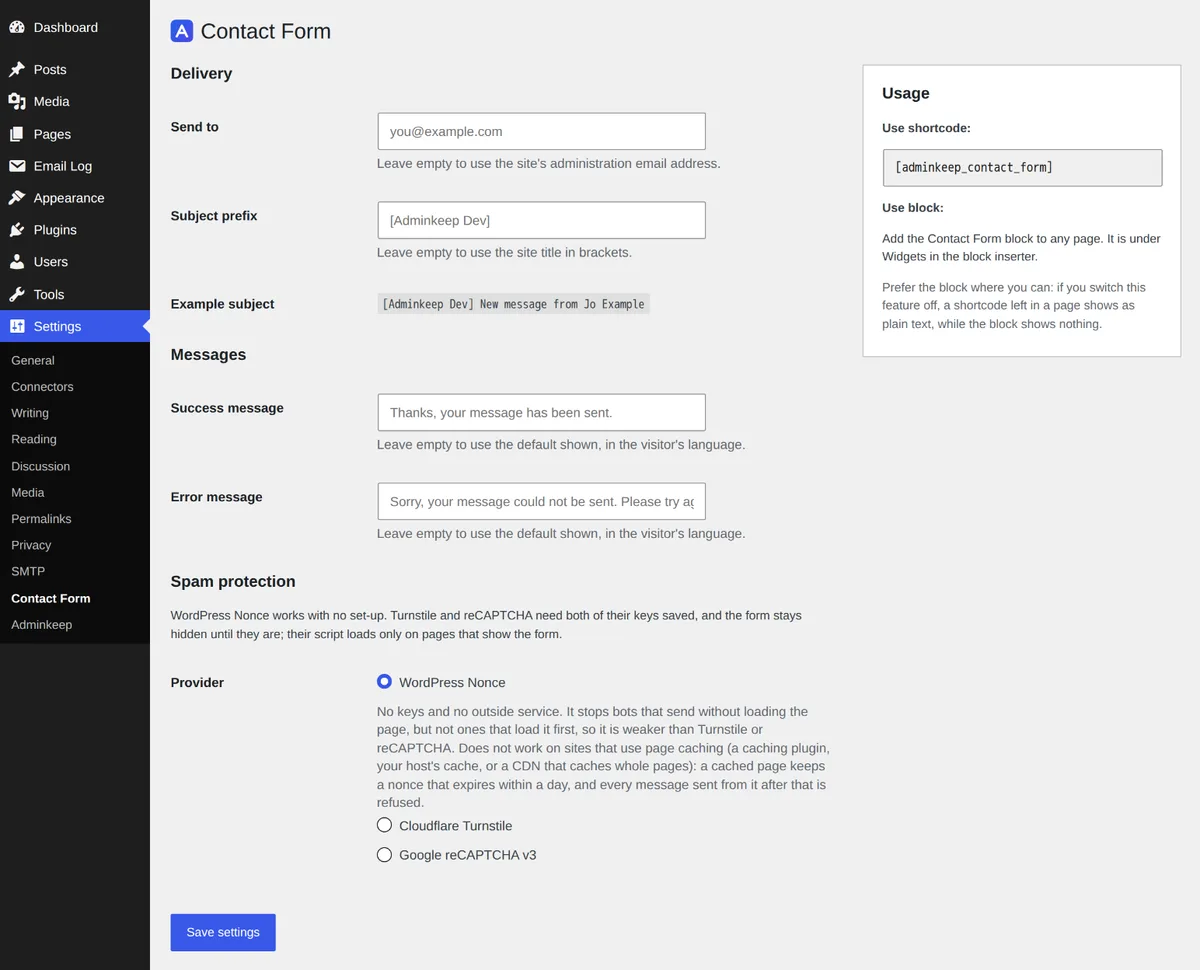
- In WordPress, switch on Contact Form in the Email group of Settings → Adminkeep, then open Settings → Contact Form.
- Under Spam protection, choose Cloudflare Turnstile, paste the site key and the secret key, and save.
Save both keys together. While Turnstile is chosen without both of them, the form is hidden from visitors, and the top of the screen says so: “The form is hidden: save both keys for Cloudflare Turnstile, or choose WordPress Nonce.” Once both are saved the warning goes, and on Settings → Adminkeep the feature reads “Live, protected by Cloudflare Turnstile”. The secret is stored encrypted and never shown again. To keep it out of the database entirely, define ADMINKEEP_TURNSTILE_SITE_KEY and ADMINKEEP_TURNSTILE_SECRET in wp-config.php instead; the Contact Form docs list all four constants.
Or use Google reCAPTCHA v3
- In the Google reCAPTCHA admin console, register the site and choose reCAPTCHA v3 (score based). Add your domain.
- Leave domain verification on. It is the setting that stops someone using your site key on another site.
- Copy the site key and the secret key.
- In Settings → Contact Form, choose Google reCAPTCHA v3, paste both keys and save.
reCAPTCHA v3 shows nothing to click. Google scores each visit from 0.0 (likely a bot) to 1.0 (likely a person), and the Score threshold decides what is refused. The default is 0.5. Raise it if spam gets through, lower it if real people are turned away. Google’s badge shows in a corner of the page, as its terms require.
Put the form on a page
The Usage box on the right of Settings → Contact Form shows both ways to place it. Add the Contact Form block. It is under Widgets in the block inserter. Use the block where you can; in the editor it shows a placeholder, and it is what still behaves sensibly if you ever switch the feature off.
Where blocks are not available, such as the classic editor or a text widget, use the shortcode:
[adminkeep_contact_form]If the feature is switched off, a shortcode left in a page shows as plain text, while a block shows nothing. With Turnstile or reCAPTCHA the form works on cached pages, and several forms on one page work independently.
Where the messages go
Under Delivery on the same screen:
- Send to is the address that gets the messages. Empty means your site’s admin email.
- Subject prefix starts every subject line. Empty means your site title in brackets, so a message reads
[Example Site] New message from Jo Example.
Each message is an ordinary WordPress email with the visitor as Reply-To, so answering it goes to them. Its last line says which page of your site it was sent from. Nothing is stored on the site. There is no list of entries to open, and nothing to clear out later. The email is the record.
If the message needs to arrive reliably, send WordPress’s mail through a real mail server: WordPress SMTP settings covers it, and Adminkeep’s SMTP feature is one way to do it.
See each message, and whether it was sent
The weak spot in any form is the question “did it arrive?”. Because the message goes through WordPress’s own mailer, Email Log sees it. Switch Email Log on and every message is listed with its subject, the recipient and a status: Sent, Failed (with the mail server’s error) or Unconfirmed. If a visitor says they wrote and you heard nothing, you look there first. A Failed row means your mail setup is the problem, not the form.
Email Log keeps a copy for the retention period you choose (30 days by default), and its personal-data exporter and eraser find these emails when a visitor asks for their data.
If it stops working
The settings screen shows a Last submission failed line when a message could not be sent for a reason on your side: a secret key the provider rejected, a provider that could not be reached, or a mail server that refused the email. Spam that fails the check is not counted. The docs list each cause.
If visitors on the default WordPress Nonce report “This page has expired”, the page they used was cached for longer than the nonce lives. Switch to Turnstile as above.
What the visitor’s browser loads
With Turnstile or reCAPTCHA, on a page with the form, the provider’s script loads in the visitor’s browser, and it receives their IP address and browser details. Nothing goes to Adminkeep, and pages without the form load nothing extra. With WordPress Nonce nothing is sent anywhere. It is worth a line in your privacy policy; Adminkeep offers suggested text under Settings → Privacy (it mentions Cloudflare and Google only while one of them is chosen), and links to Cloudflare’s and Google’s privacy policies.
Questions people ask
Where are the messages stored?
Nowhere on your site. Each message is emailed to the address you set, and the form keeps no copy. If Email Log is switched on it keeps a copy of the email with its status, for the retention period you choose.
Why can't visitors see the form?
Cloudflare Turnstile or Google reCAPTCHA v3 is chosen under Settings → Contact Form, but its two keys are not both saved. Save them, or choose WordPress Nonce, which needs none. Until then administrators see a note where the form will appear.
Does the form work with page caching?
With Turnstile or reCAPTCHA v3, yes: the form then carries no nonce, so a cached page never serves a form that has expired. With the default, WordPress Nonce, no: a cached page keeps a nonce that expires within a day, and messages sent from it after that are refused.
Do I need Turnstile if the form works without it?
Not always. The default WordPress Nonce needs no keys and stops bots that post without loading the page. Turnstile is the stronger check, and the one to use on a site that caches its pages.
Can I add more fields?
No. The form is Name, Email and Message, on purpose. If you need file uploads, conditional fields or a stored list of entries, that is a job for a form builder.