How to check if WordPress sent an email (and why it failed)
Did WordPress send that email? How to check: log every send, read Sent, Failed and Unconfirmed, and find the exact error when a password reset goes missing.
A customer says the password reset never came. A lead says they filled in your contact form last week and heard nothing. You check, and WordPress has no record of either email. It doesn’t keep one. When wp_mail() returns, the message is gone, and whether it left cleanly, failed with an error or was never sent at all, nothing on the site says.
A WordPress email log fixes that. It writes down every email the site sends, who it was for, what it said, and what happened when WordPress handed it over. The next time someone asks where their email went, you open the log instead of guessing.
This guide covers how to check whether WordPress sent an email, what an email log records, what its statuses really mean, how to read a failed send, and what should stay out of the log.
A quick test: did WordPress send it?
Before digging into one missing email, send yourself one you know WordPress sends, and see what the log says about it.
- Switch on an email log first. The steps for Adminkeep are further down. A log only records emails sent after it is on, so it can’t answer for last week’s missing email, only for the next one.
- Open a private browser window, go to your login page, click Lost your password? and enter your own username or email address. WordPress sends you a “Password Reset” email with your site’s name in the subject.
- Open Tools → Email Log and look at the newest row.
What that row says tells you where to look next:
- Sent, and the email arrived: sending works. If other emails go missing, check them in the log the same way.
- Sent, but nothing in your inbox or spam folder: WordPress handed the email over and the mail server accepted it. The problem is delivery, usually how your domain is authenticated.
- Failed: open the row and read the error at the top. The sections below explain the common ones.
- Unconfirmed: another plugin took over sending. Its own records are the place to check.
- No row at all: WordPress was never asked to send it, so the cause sits before sending, not in delivery.
In the logged copy, the reset link shows as [link removed]. That is deliberate, and explained below; the email in your inbox has the working link.
What an email log records
Each time WordPress sends an email, the log adds a row. With Adminkeep, that row holds:
- Recipient: the To address, or all of them.
- Sender: the From address and name the email really went out with. If an SMTP plugin swaps the sender at the last moment, the log records the swapped one.
- Subject and date.
- Content: the body of the email, HTML or plain text.
- Headers: Cc, Bcc, Reply-To and the content type. Other headers are dropped.
- Attachments, by file name. The files themselves are not kept.
- Status: Sent, Failed or Unconfirmed, and for a failure, the error.
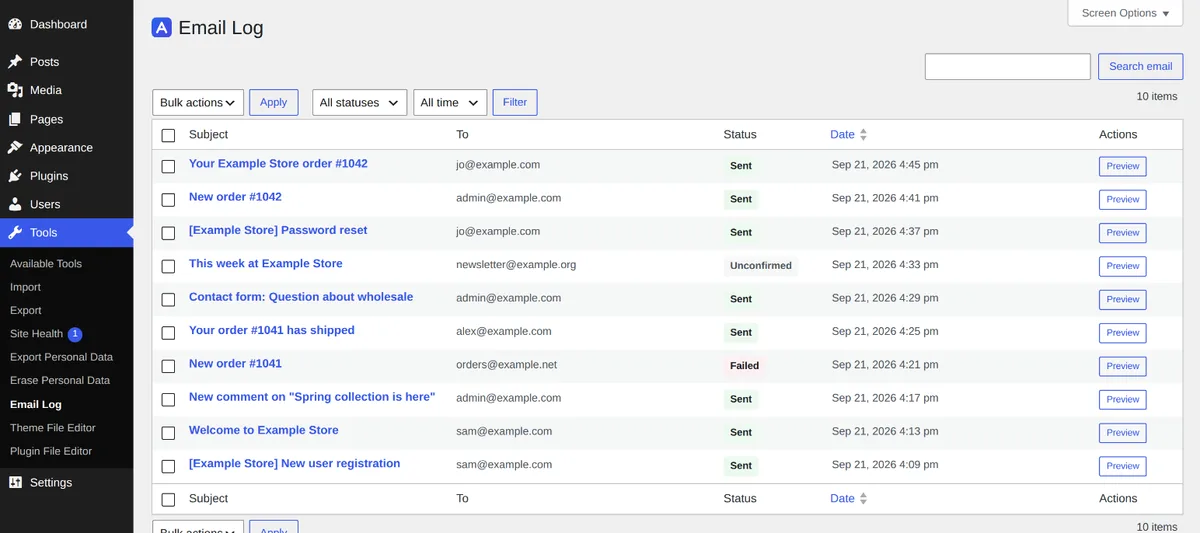
The row is written the moment WordPress is asked to send, before anything else happens. That matters for the statuses below: an email that dies partway still leaves a row behind.
Sent, Failed and Unconfirmed
These three words carry most of what a log can tell you, and each means something narrower than it sounds.
Sent means the mail server accepted the email. Whether that is your web server’s own mail program or an SMTP server you configured, it took the message and said it would handle it. It does not mean the email reached the inbox. The receiving server can still file it as spam or drop it, and nothing comes back to WordPress when it does. If a Sent email never arrived, the problem is past your site, usually in how your domain is authenticated. The SMTP settings guide covers that part.
Failed means WordPress tried and got an error back. The log keeps the error, and it is usually the most useful line on the screen:
SMTP Error: Could not connect to SMTP host.That one says the site never reached the mail server: a wrong host or port, or a web host that blocks outbound mail connections. A rejected login or a refused From address reads differently, and each points somewhere else. If the error quotes the SMTP username or password set in Adminkeep’s SMTP feature, both are scrubbed out before the error is stored.
Unconfirmed means WordPress never heard back. The row was written, but neither “sent” nor “failed” arrived afterwards. That happens when another plugin takes over sending, or puts the email in a queue to send later. The email may well have gone out; the log just has no word either way. If most of your log is Unconfirmed, look at which plugin is handling your mail. It is doing the sending, and its own records are the place to check.
Read an email the way it was sent
A list of subjects only goes so far. A good email log viewer lets you open the email itself. Click any subject, or its Preview button, and the email opens in a preview window over the list. The top shows the status, sender, recipient, date, any Cc, Bcc and Reply-To, and attachment names. A failed email shows its error there too. The ‹ and › buttons step to the previous and next email without closing the window.
Below that is the email itself, in tabs:
- HTML: the email rendered as it was sent, the way a mail client would draw it. For a plain-text email this tab is called Plain text instead.
- Plain text: shown only when the email carried both versions, as order and newsletter emails often do, so you can check each one.
- Source: the stored body as text, markup and all.
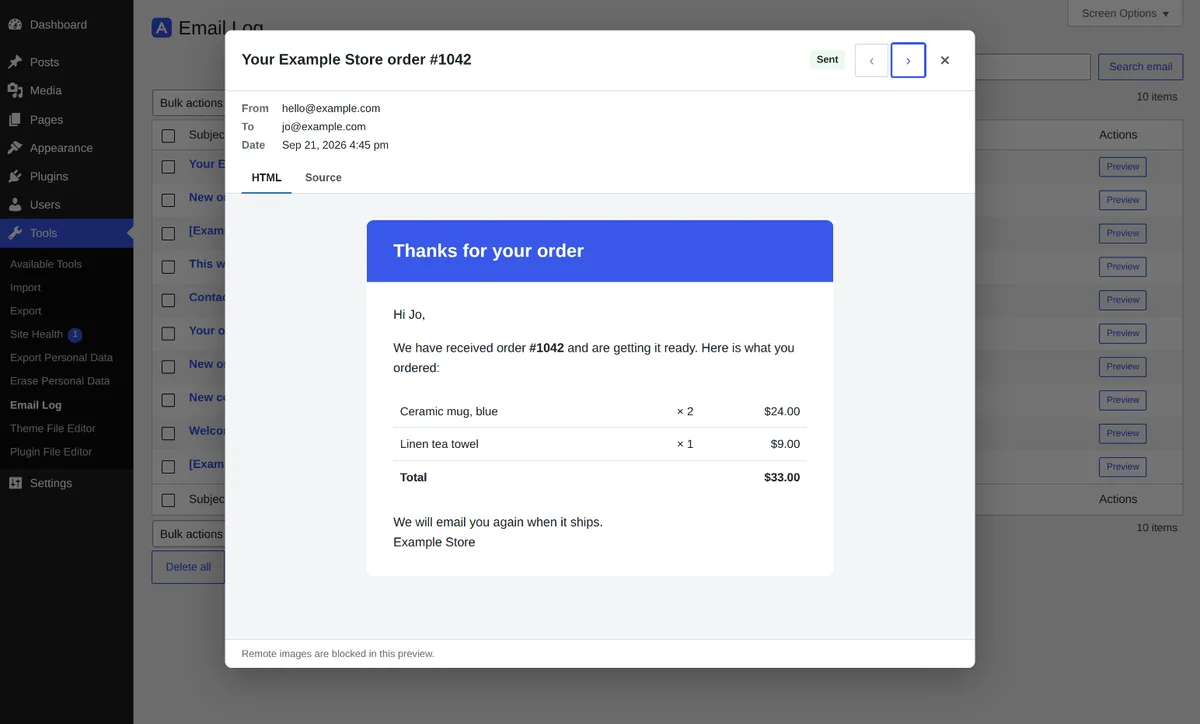
The preview is locked down on purpose. An email log shows HTML that other people wrote, from form submissions, plugins and order data, inside your admin screen. So scripts do not run in it, forms do not work, and remote images are not loaded. A missing logo in the preview is the blocking at work, not a fault in the email.
Keep sign-in links out of the log
An email log is a copy of every email your site sends, and some of those emails are keys. A password-reset email is a password reset for whoever can read it. A log that stores it as written is a list of ways into your users’ accounts, sitting in your database and in every backup of it.
So Adminkeep takes those links out before an email is stored. Password-reset links, sign-in links and account activation links are replaced with [link removed]. The rest of the email is kept, so you can still see that the reset was sent and when.
This catches the common link formats, not every possible one. If your site sends sign-in links in an unusual shape, from a membership or magic-link plugin, say, switch content storage off. The setting is Keep the content of each email, with sign-in and password-reset links removed. Untick it and the log keeps only the envelope: recipient, sender, subject, headers, attachment names and status. You can still see what was sent and whether it failed, just not what it said.
Only administrators can open the log. Editors, shop managers and other roles don’t see Tools → Email Log at all.
How long to keep it
A log that is never cleared grows forever, and it fills with people’s email addresses and messages you no longer need. So entries expire.
Under Keep logs for you choose 7, 14, 30, 60 or 90 days, 1 year or 2 years. The default is 30 days, enough to answer “did my email go out last week?” without keeping months of customer mail around.
Two limits keep the table in check:
- The purge runs daily. Once a day, entries older than your setting are deleted, in batches, so a large backlog does not stall the site.
- The log is trimmed to the newest 10,000. A newsletter or a sale can push thousands of emails through in an afternoon, so the cap is enforced as email is logged, not only at the daily purge. Once the log is over 10,000, the oldest go first.
Shorter is better for privacy. Pick the shortest period that still covers the questions you actually get.
Find a failed email fast
When someone says an email never arrived, this is the quickest route to an answer.
- Go to Tools → Email Log.
- Set the status dropdown to Failed.
- Set Period to when it should have happened: 1 hour, 12 hours, 1 day, 2 days, 7 days or 30 days. Choose Custom for a date range.
- Type the person’s address, or a word from the subject, in the search box. Search looks at the recipient, the sender and the subject.
- Press Filter, then open the email and read the error at the top.
If nothing shows as Failed, set the status back to all statuses and search again. A Sent row means your site handed the email over, and the problem is on the delivery side. No row at all means your site was never asked to send it.
Filtered views live in the address bar, so you can bookmark “failed in the last day” and check it each morning.
Set it up with Adminkeep
Adminkeep is a free plugin made of small features that each have one switch. Its Email Log feature works as a standalone email log plugin: it needs no SMTP setup and no other feature switched on. If you don’t have Adminkeep yet, installation takes a minute.
- Go to Settings → Adminkeep and switch on Email Log in the Email group.
- Choose how long to keep logs, and leave content storage on unless you have a reason not to.
- Save. From now on, Tools → Email Log lists every email the site sends.
It works with or without an SMTP setup. Email Log only listens; it does not change how email is sent. So it runs beside Adminkeep’s own SMTP feature, beside another SMTP plugin, or with no SMTP at all. When the log shows failures that point at delivery, such as timeouts, rejected logins or refused senders, the SMTP settings guide walks through the fixes.
Switching the feature off stops logging. What is already logged stays until you switch it back on, delete it, or uninstall the plugin.
If you work from the command line, the log is there too:
wp adminkeep email-log list --status=failedwp adminkeep email-log count, get <id> and purge round it out. The WP-CLI docs list the options.
Coming from the Email Log plugin
If you already keep an email log with the Email Log plugin, you don’t have to start from an empty list. Adminkeep can copy that history across, removing sign-in links on the way in and leaving the other plugin’s log as it was; moving from the Email Log plugin shows how.