Moving from the Email Log plugin: bring your history with you
Looking for an Email Log plugin alternative? Copy its history into Adminkeep with one button or one WP-CLI command, see what comes across, then deactivate it.
If you’re already using the Email Log plugin and want to move to Adminkeep’s email log, you don’t have to start with an empty list. Adminkeep can read the Email Log plugin’s table directly and copy its history in, so the emails you already have on file stay on file.
This guide covers what the copy brings across, what it can’t, and how to run it either way: a button in the admin screen or one WP-CLI command.
Before you start
Turn on Email Log in Adminkeep first: Settings → Adminkeep, switch on Email Log in the Email group, and save. The copy writes into this log, so it needs to be on. Leave the Email Log plugin active too — the copy reads its table, so it has to still be there to read from.
Copy from the admin screen
Open Tools → Email Log. While the Email Log plugin is active, the screen shows a box.
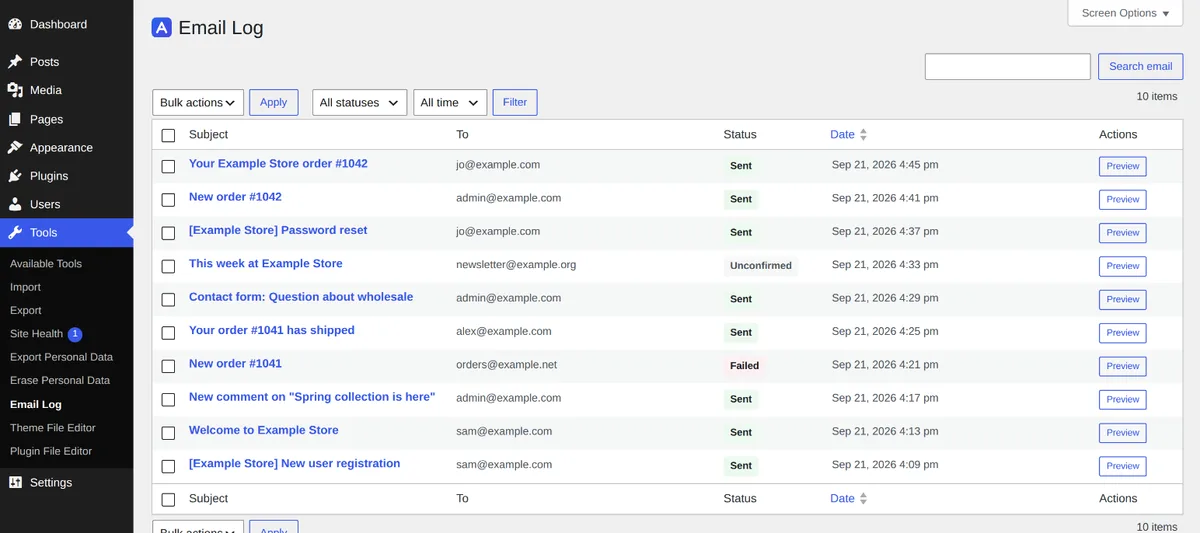
Press Copy from Email Log. It reads what the Email Log plugin has stored, brings in what it can, and shows a summary: how many were copied, how many were skipped as too old, and how many couldn’t be saved. The summary also reminds you that both plugins are now logging every email twice, and suggests deactivating Email Log.
Copy from WP-CLI
If you’d rather run it from the command line:
wp adminkeep email-log import email-logAdd --dry-run first if you want to see the numbers without writing anything:
wp adminkeep email-log import email-log --dry-runEither way prints the same kind of summary as the button: how many were imported, how many were skipped as older than your retention setting, and how many were left out if the log was already full.
What comes across, and what doesn’t
The copy reads the Email Log plugin’s own table and never writes to it — deactivating or even removing that plugin afterwards doesn’t touch the copy already sitting in Adminkeep.
A few rules carry over from Adminkeep’s own log, so the copied history behaves the same way the rest of it does:
- Anything older than your retention setting is skipped. If Adminkeep is set to keep 30 days, an email from three months ago in the Email Log plugin isn’t copied — Adminkeep would have deleted it by now anyway.
- Sign-in links are removed on the way in. Password-reset, sign-in and account-activation links are replaced with
[link removed], the same as any email Adminkeep logs itself. - The 10,000-row cap holds. If the copy would push the log past that, the oldest rows are left out rather than the log growing past its limit.
- Running it again only brings what’s new. Adminkeep remembers where it left off, so pressing the button or running the command a second time doesn’t recopy anything already brought across — useful if you keep both plugins running for a while before switching over fully.
A few things the copy can’t recover, because the Email Log plugin’s own table never recorded them in the first place:
- No attachment names. The Email Log plugin doesn’t store what a logged email was attached with, so copied rows show none.
- From is blank unless a From header was set. If nothing in your setup ever set an explicit From address, the Email Log plugin never recorded one to copy.
- Dates read in your site’s current time zone. If your site’s time zone has changed since those emails were logged, the copied dates shift by the difference.
None of this is a fault in the Email Log plugin — it’s simply what it kept and what it didn’t. Adminkeep copies as much of that history as it can and is upfront about the rest.
When to deactivate Email Log
Once you’ve copied what you need and Adminkeep’s own Email Log is switched on, deactivate the Email Log plugin. With both active, every new email is logged twice — once by each plugin — which is harmless but unnecessary. There’s no rush: keep both running for as long as you want to compare the two, and deactivate whenever you’re satisfied Adminkeep has what you need.
If you ever want to run the copy again later, for a fresh batch of history, it’s still there: the button stays as long as the Email Log plugin is active, and the WP-CLI command works whenever Email Log is switched on.