How to edit a published WordPress page without taking it offline
Published Updated View as Markdown
WordPress has no staging for a single page. How to edit a published page without unpublishing it: draft copies, rewrite and republish, and what to check.
There is no staging environment for a single WordPress page. Click Update on a page that’s already published, and the change is live the instant the request finishes — no review step, no confirmation screen, nothing between your cursor and the page a visitor might be looking at right now.
Most of the time that’s fine. If you’re fixing a typo, updating a phone number, or swapping one sentence for a clearer one, just edit the page and click Update. That is the safest and fastest way to change a live page, and it’s the right answer for small text changes every time. Everything below is for when the edit isn’t small — a layout rebuild, a new hero section, a long rewrite that takes an hour or spans several sessions — where “live the instant you click” stops being convenient and starts being a risk.
What “Update” actually does
The published page is one row in the wp_posts table. When you edit it and click Update, WordPress writes your changes into that exact row. There is no second copy, no pending version, no “publish when ready” gate on an already-published page — that gate only exists the first time, before you ever click Publish. After that, every save is a live write.
This is true whether you’re deep in a page-builder canvas, mid-sentence in a block editor paragraph, or restructuring a whole section. If your connection drops or you switch tabs to check something and forget you left a section half-rearranged, whatever state the page was in at your last save is what’s live. WordPress doesn’t ask whether you meant to publish that state — it already did.
Why revisions don’t save you
Every save WordPress makes to a published page also creates a revision — a snapshot stored as its own row, linked back to the original page by post_parent, with post_type set to revision. Open the Revisions screen and you can compare any two of these snapshots side by side, or restore an older one over the current content.
That sounds like a safety net, but look at what it actually stores: the past. A revision is a record of what the page used to say, useful after the fact when you need to undo a bad edit or recover text you deleted last week. It is not a place to draft the next version of a page while the current one keeps serving visitors. There is no “future” revision sitting off to the side waiting for you to promote it — restoring a revision is just another live write, overwriting whatever is there now with whatever was there before. Revisions are history. They were never built to be staging.
The real risk: layout changes and long rewrites
This gap barely matters for a one-line fix — the live version is wrong for a few seconds, then it’s right. It matters a lot when the edit takes real time. Rebuild a landing page’s hero section and save partway through, and visitors land on a page with a broken layout and a half-written headline. Rewrite a long article over several sittings and every intermediate save — including the ones you make just to avoid losing work — publishes an unfinished draft to anyone who happens to open the page, and to any crawler that happens to fetch it, mid-edit.
The work itself isn’t the problem. Doing it directly on the live page is.
Edit a published page without unpublishing it: the draft-copy workaround
The manual fix is to stop editing the live row at all. Duplicate the page — see how to duplicate a page in WordPress for the full method — and do your rebuild or rewrite on the copy instead. The copy is a draft. Nobody sees it, nothing indexes it, and you can leave it half-finished for as long as you need.
The catch is getting the finished draft back into the live page, and there are two ways this goes wrong.
- Merge errors. There’s no built-in “merge this draft into that page” command. You copy the finished content out of the draft and paste it back into the original, by hand — which means redoing the exact copy-paste steps the duplicate guide warns don’t carry everything. Miss a block, skip a meta field, forget the featured image changed, and the merge is silently incomplete. You find out later, the same way you’d find out a manual duplicate lost something: after it’s already live.
- Losing the URL. The other way people try to shortcut the merge is by swapping the pages instead of merging them — renaming the draft’s slug to the live URL and moving the original out of the way. The address in the browser ends up right, but the two pages never stopped being two different rows with two different IDs. Comments, any internal link built on the post ID rather than the slug, and the original’s own edit history all stay behind on the page that’s no longer at that URL. The content moved. The page’s identity didn’t.
Rewrite and republish with Yoast Duplicate Post
The closest thing to a real answer already on wp.org is the Rewrite & Republish feature in Yoast Duplicate Post. Click it on a published post or page and it creates a linked draft copy for you — no manual duplicate step. Finish your edits on that copy, click Republish, and the plugin writes the changes back into the original post’s row itself: same ID, same URL, no copy-paste. That’s a materially better mechanism than the manual workaround above, and it’s worth being straight about that.
Its one-star reviews aren’t about that mechanism failing, either. They’re the familiar complaint pattern for that specific plugin family: upgrade banners, “go Premium” prompts, an onboarding screen that reappears after updates — a manners problem, not a mechanism problem. The republish logic itself isn’t what people are angry about.
What a rewrite-and-republish flow has to guarantee
Whether you build the flow by hand or reach for a plugin, judge it against the same checklist:
- Same post ID. Not a copy that gets swapped in — the original row, updated in place, so comments, revision history, and anything referencing the page by ID stay attached to it.
- Same URL, automatically, with nothing to rename and nothing to redirect.
- One-click merge back, not a manual copy-paste pass that has to rediscover every field a duplicate can lose.
- Nothing left behind. Once the merge happens, there shouldn’t be an orphaned draft row sitting in the database, and there shouldn’t be an in-between state where two versions of the page both look “current.”
The shortcut
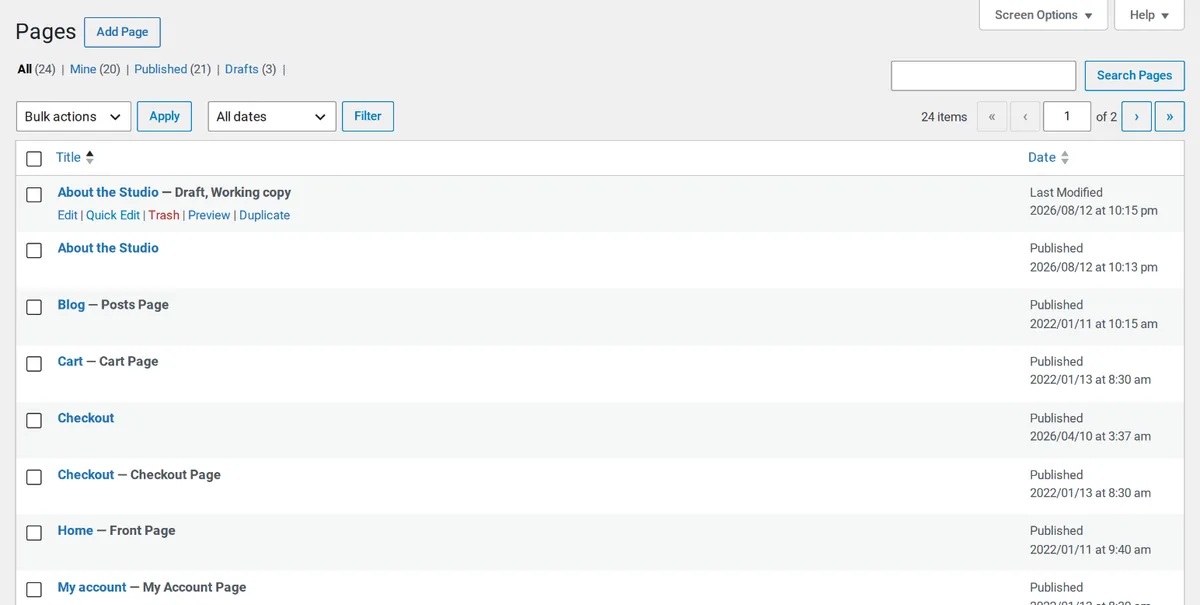
Adminkeep’s Live Draft feature is its way to edit a published page without unpublishing it. Open a published page, start a live draft, and you get a private copy to rebuild or rewrite on your own schedule — half-finished, for as long as you need, with the live page untouched. When it’s ready, one click merges it back into the original post: same ID, same URL, nothing to rename.
It’s a free download from wordpress.org, and GPL.
Questions people ask
Can I edit a published WordPress page without the changes going live?
Not on the page itself: every Update on a published page is a live write. You need a draft copy to work on, and then a way to merge it back into the original page.
Do revisions let me draft the next version of a page?
No. A revision records what the page used to say, and restoring one is just another live write. Revisions are history, not staging.
What goes wrong if I swap a draft page in at the live URL?
The two pages stay two rows with two IDs. Comments, links built on the post ID and the edit history all stay on the original, which is no longer at that URL.
How does Adminkeep's Live Draft edit a published page without unpublishing it?
It gives you a private working copy of the page. When you are ready, one click merges it back into the original post: same ID, same URL, nothing to rename.