How to disable plugin installation in WordPress
Published Updated View as Markdown
DISALLOW_FILE_MODS blocks plugin installs for everyone, you included, and needs file access to undo. A safer way to disable plugin installation in WordPress.
Every plugin you install is code with the full run of your site: file access, database access, whatever admin capabilities it asks for. That’s a fair trade when you chose the plugin deliberately. It’s a much worse trade when the install happened by accident, by a support tech poking around, or by whoever got into the account after you did. If you’re looking at how to disable plugin installation on a WordPress site, you’re probably not trying to stop yourself — you’re trying to close a door that keeps getting opened by someone else.
Why prevent clients from installing plugins
Every plugin install is attack surface, full stop. It doesn’t matter how reputable the plugin looks in the directory; the moment it’s active, it can read your database, write to your filesystem, and register anything a logged-in admin can register. Most installs are fine. The ones that aren’t are exactly why this matters.
Two situations bring people here. The first is the agency handoff: you build a clean site, hand it over, and six months later it comes back broken — a page builder or “SEO booster” got installed along the way, nobody remembers why, and now three things on the front end don’t render. The second is worse. When an admin account gets compromised, installing a plugin is one of the first moves an attacker makes, because a plugin is a much more durable foothold than a single edited file. It survives a core update. It can look like anything. And once it’s active, “clean up the hack” means auditing every plugin on the site, not just the one that got in.
Blocking installs doesn’t stop every attack. It closes one of the easiest, most reliable ones.
The standard way to block plugin installs, and its real trap
Search for how to stop WordPress plugin installs and you’ll land on one answer almost everywhere: add this to wp-config.php.
define( 'DISALLOW_FILE_MODS', true );It works exactly as advertised. With it set, the Add New Plugin screen disappears, the Upload Plugin button is gone, the plugin and theme editors are gone, and — this is the part people skip past — updates are gone too. DISALLOW_FILE_MODS doesn’t distinguish between a new install and an update to something already there. It kills both, for every role, including yours.
That’s the trap. You didn’t just block a hypothetical bad install — you blocked the security update for the plugin you’re already running, the one that matters most. And turning the constant back off requires editing wp-config.php directly, which means FTP, SFTP, SSH, or a hosting file manager. If the person you handed the site to only has a wp-admin login — which is the whole point of most handoffs — they can’t undo this themselves. They’re stranded until you or a developer opens the file for them.
There’s one situation where that’s exactly the right trade. On fully managed hosting where a developer owns every deploy — plugin updates go through a staging pipeline, code review, and a controlled release, not a click in wp-admin — DISALLOW_FILE_MODS is correct, not a mistake. The dashboard was never supposed to be where installs happen on that kind of site. For everyone else, it’s a constant that solves the install problem by also breaking the thing you needed to keep working.
The middle ground: capabilities by hand
WordPress already gates plugin installs behind capabilities — install_plugins, update_plugins, delete_plugins — and by default only the administrator role holds them. So the constant is usually solving a problem that only shows up once an agency handoff gives the client’s account the administrator role, often because a page builder or theme demanded it during setup. In that situation, the real fix isn’t blocking file mods globally, it’s not handing out those capabilities in the first place, or removing them once they’re there.
You can strip a capability from a role with remove_cap() in functions.php, or through a role-editor plugin that gives you checkboxes instead of code. Both work. Both are also fiddlier than they sound. Hand-edited capability changes give you no confirmation and no undo — get the role or the capability name wrong and nothing errors, it just silently doesn’t do what you meant. Role-editor plugins are friendlier but add another plugin to a site where the whole goal was fewer moving parts, and reversing a change usually means remembering exactly which boxes you unchecked six months ago rather than clicking one switch back.
There’s a smaller, safer sibling worth knowing about here too: DISALLOW_FILE_EDIT. It’s easy to confuse with DISALLOW_FILE_MODS because the names are close, but the scope is much narrower — it only removes the Plugin Editor and Theme Editor screens, the in-dashboard code editors. It doesn’t touch installs or updates at all. If code edits from the dashboard are the actual risk you’re worried about, that’s the constant for it, not DISALLOW_FILE_MODS. Blocking installs and disabling the code editor are two different problems with two different answers; DISALLOW_FILE_MODS vs DISALLOW_FILE_EDIT compares the two constants side by side.
Block plugin installs without blocking updates
The approach that avoids both failure modes runs at a different layer entirely: filter the capability check itself, at runtime, instead of editing the role or blocking file writes wholesale. WordPress passes every current_user_can() check through the map_meta_cap filter, which means you can refuse install_plugins for the request without ever touching what’s stored on the role. It has to be map_meta_cap rather than the better-known user_has_cap: WordPress treats upload_plugins as a flavour of install_plugins, and only map_meta_cap can refuse a ZIP upload on its own terms.
That distinction matters more than it sounds like it should. Nothing gets written to the database, so there’s no capability edit sitting in wp_usermeta that someone has to remember to reverse later. Switch it off from the dashboard, and the filter stops running — the capability is back on the next page load, exactly as if it had never left. No wp-config file, no FTP session, no “call your developer” moment. Whoever has an admin account can always undo this themselves, which is the one requirement a block like this can’t skip: it should never strand the owner.
The other thing a capability filter gets you that a blanket constant can’t: precision. DISALLOW_FILE_MODS kills installs and updates together, so the site that is closed to new plugins also stops receiving security releases for the ones it has. A filter can remove install_plugins, install_themes, upload_plugins and upload_themes and leave update_plugins exactly where it was — new code stops arriving, and patches keep coming.
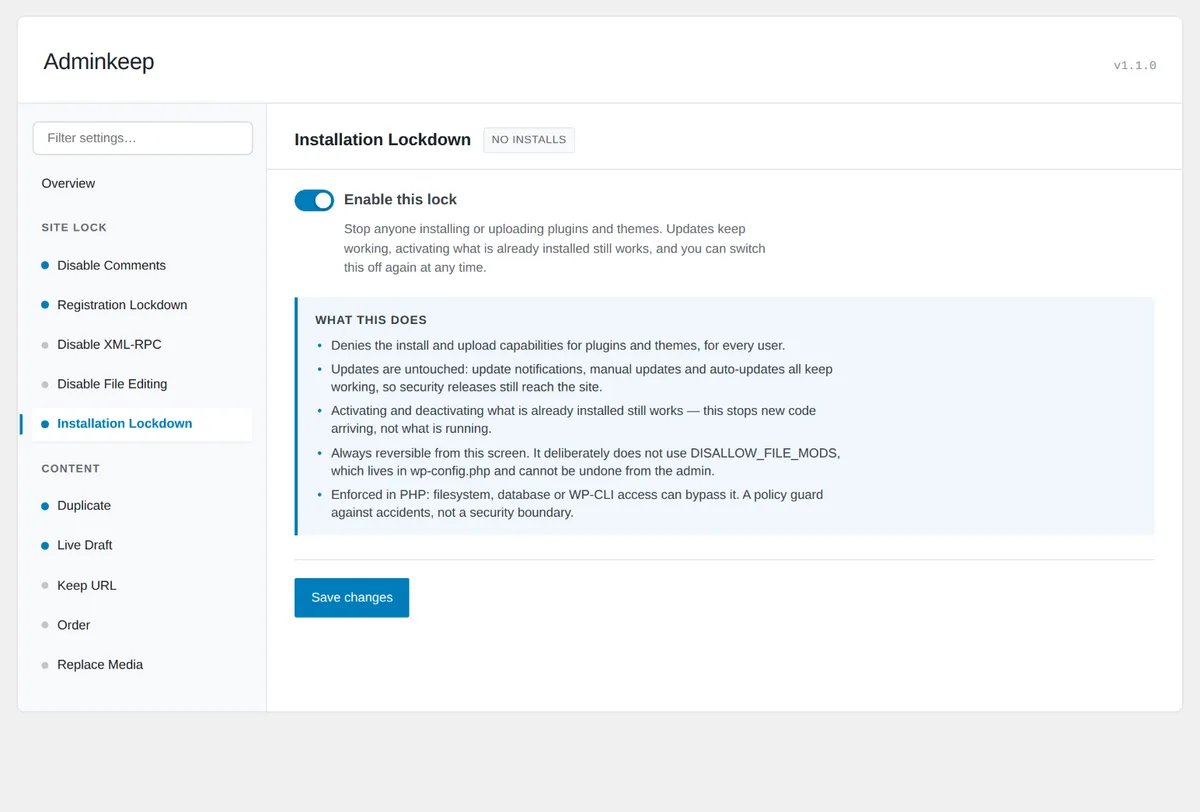
Block plugin and theme installs with Adminkeep
Adminkeep can block plugin and theme installs for you; on its settings screen the switch is called Installation Lockdown. It blocks installs — from the WordPress.org directory or a ZIP file — and stops anyone replacing an installed plugin by uploading a ZIP over it. It’s capability-based, the way described above, not DISALLOW_FILE_MODS. Turn it on and the Add New and Upload screens disappear; turn it off from the dashboard and they’re back, nothing left over in the database either way. Updates are deliberately left alone: update notices, manual updates and auto-updates all keep working while it is on, so blocking installs and keeping the site patched don’t work against each other. A plugin’s “View details” window still opens too, so you can read what an update changes before you apply it. On a multisite network, super admins are not affected; the block is for the people a site is handed to.
The same rule runs through every feature in the plugin: switch it off and the site behaves as it did before. If it’s a specific plugin’s updates — not installs — you want to stop, that’s a related but different problem, covered in how to stop a WordPress plugin from updating. Adminkeep is free on wordpress.org.
Questions people ask
Does DISALLOW_FILE_MODS stop plugin updates too?
Yes. It doesn't distinguish a new install from an update, so it blocks both, for every role, and switches off automatic updates. Undoing it means editing wp-config.php again.
Can I block plugin installs but keep updates working?
Yes. Refuse the install capabilities at runtime through the map_meta_cap filter and leave update_plugins alone. That is how the Adminkeep switch works: installs stop, update notices, manual updates and auto-updates keep going.
Does blocking plugin installs stop ZIP uploads?
With the capability approach in this guide, yes. It refuses upload_plugins as well as install_plugins, so the Upload Plugin screen goes too, and an installed plugin cannot be replaced by uploading a ZIP over it.
Can the site owner undo the block without file access?
With Adminkeep, yes. Any administrator can switch it off from the dashboard, and the capability is back on the next page load with nothing left in the database.