---
title: "Why WordPress custom CSS disappears when you switch themes"
description: "Additional CSS belongs to the theme, so it disappears when you switch. Where WordPress keeps custom CSS, why it vanishes, and how to keep styles theme-proof."
pubDate: 2026-09-22
source: https://adminkeep.com/guides/wordpress-custom-css/
---
You spend an afternoon getting the site right. The header border is thinner, links have a proper underline, the buttons have softer corners, the site title stops wrapping on phones. Months later you try a new theme, and every one of those tweaks is gone. Switch back, and they return.
Nothing was deleted. Your custom CSS was saved in a place that belongs to the old theme, and WordPress only loads it while that theme is active. Most places you can add custom CSS in WordPress work this way, and it is rarely explained up front.
This guide covers where WordPress custom CSS can live, which of those places are tied to a theme, and how to keep site-wide styles that stay put whatever theme you run.
## Where custom CSS can live in WordPress
There are four common homes for custom CSS, and they differ in one way that matters here: what they are attached to.
**The Customizer's Additional CSS.** On a classic theme, **Appearance → Customize → Additional CSS** is the box most people find first. WordPress stores what you type there as a post of its own, of the `custom_css` type, one for each theme, keyed to the theme's stylesheet (its folder name). Only the post belonging to the active theme is printed on the page.
**Styles → Additional CSS in the Site Editor.** On a block theme, such as Twenty Twenty-Five, the Customizer usually no longer appears in the Appearance menu. The CSS box moved into the Site Editor: **Appearance → Editor → Styles**, then Additional CSS. What you type there is saved in your global style changes for that theme, which WordPress also keeps per theme.
**A child theme's `style.css`.** A child theme is a small theme that inherits everything from a parent and adds its own files. CSS in its stylesheet survives updates to the parent, which is what child themes are for. But it only loads while that child theme is the active theme, so moving to a different theme leaves it behind.
**A plugin.** CSS stored by a plugin belongs to the plugin, not to the theme. As long as the plugin is active, it can print the CSS on every theme.
| Where | Tied to | Survives a theme switch |
|---|---|---|
| Customizer → Additional CSS | The theme that was active when you saved it | No |
| Site Editor → Styles → Additional CSS | The block theme's global styles | No |
| Child theme `style.css` | The child theme | No |
| A plugin | The plugin | Yes, while the plugin is active |
## Why custom CSS disappears when you switch themes
WordPress treats Additional CSS as part of a theme's look, next to its colours, header image and layout choices. That makes sense for rules written against one theme's markup: CSS that fixes a gap under one theme's header means nothing to another theme, and could break it.
But a lot of custom CSS is not like that. Link underlines, button corners, a brand colour on selected text, a readable font size on phones: these belong to the site, and you want them on any theme. WordPress has no separate box for that kind of CSS, so it goes in the theme's box and leaves with the theme.
The old CSS is still in the database. Switch back to the old theme and it comes back. What WordPress doesn't do is carry it across to the new one, or tell you it stayed behind. The usual fix is to copy it by hand before switching, and remember to do that every time.
The same goes for a redesign that moves from a classic theme to a block theme. The CSS box moves from the Customizer to the Site Editor, and the CSS you wrote in the Customizer stays with the old theme.
## Site-wide CSS with Adminkeep
[Adminkeep](https://wordpress.org/plugins/adminkeep/) is a free plugin made of small features that each have one switch. Its Custom CSS feature works as a standalone [custom CSS plugin](/custom-css/): it gives your site one stylesheet that belongs to the site rather than to a theme.
1. Go to **Settings → Adminkeep** and switch on **Custom CSS** in the **Appearance** group. If you don't have the plugin yet, [installation](/docs/installation/) takes a minute.
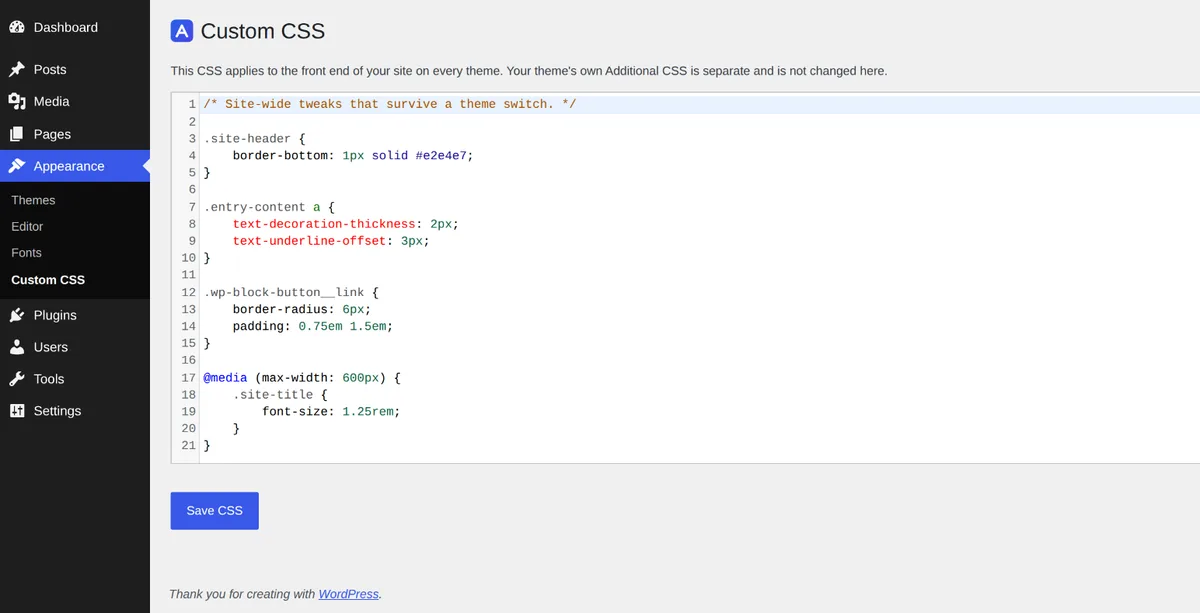
2. Open **Appearance → Custom CSS**. It sits in the Appearance menu on classic and block themes alike, not several clicks deep in the Site Editor.
3. Add your custom CSS and press **Save CSS**.
The editor is WordPress's own code editor, the one core uses for its CSS box, with line numbers, syntax highlighting and CSS linting that flags mistakes as you type. If you have switched syntax highlighting off in your user profile, you get a plain text box instead.
Appearance → Custom CSS: one stylesheet for the site, whatever the theme.
What it does once saved:
- **It prints on every theme.** The CSS is kept in a site option, not in a theme, and printed in the head of every front-end page, whichever theme is active. Switch themes and it is still there.
- **Your theme's own Additional CSS is left alone.** Adminkeep doesn't move, copy or change it, and you can keep using both. Adminkeep's CSS is printed after the Customizer's Additional CSS, so when the two set the same property with equally specific selectors, the site-wide rule wins.
- **It styles the front end only.** It isn't loaded in the admin or inside the block editor, so the editor won't preview it; check the result on the site itself.
- **HTML is refused.** Anything that looks like an HTML tag is rejected when you save, with a message saying so and your text kept on screen to fix. A pasted snippet can't slip a `