---
title: "Email Log"
description: "How Adminkeep's Email Log works: what Sent, Failed and Unconfirmed mean, filters and search, the preview, retention, importing old logs, and WP-CLI."
source: https://adminkeep.com/docs/email-log/
---
Email Log records what `wp_mail()` was asked to send: the recipient, sender, subject, headers,
attachment names, content, and whether it went out. It only listens — it changes nothing about
how email is sent, so it works with Adminkeep's own SMTP feature, another SMTP plugin, or no
SMTP setup at all. This page is the reference; the [email log plugin](/email-log/) page has
the overview.
## Turn it on
Go to **Settings → Adminkeep** and switch on **Email Log**, in the **Email** group. From then
on, every email the site sends is written to the log the moment `wp_mail()` is called, before
anything else happens — so an email that fails partway through still leaves a row behind.
Switching the feature off stops logging. What is already logged stays until you switch it back
on, delete it, or uninstall the plugin.
## The list
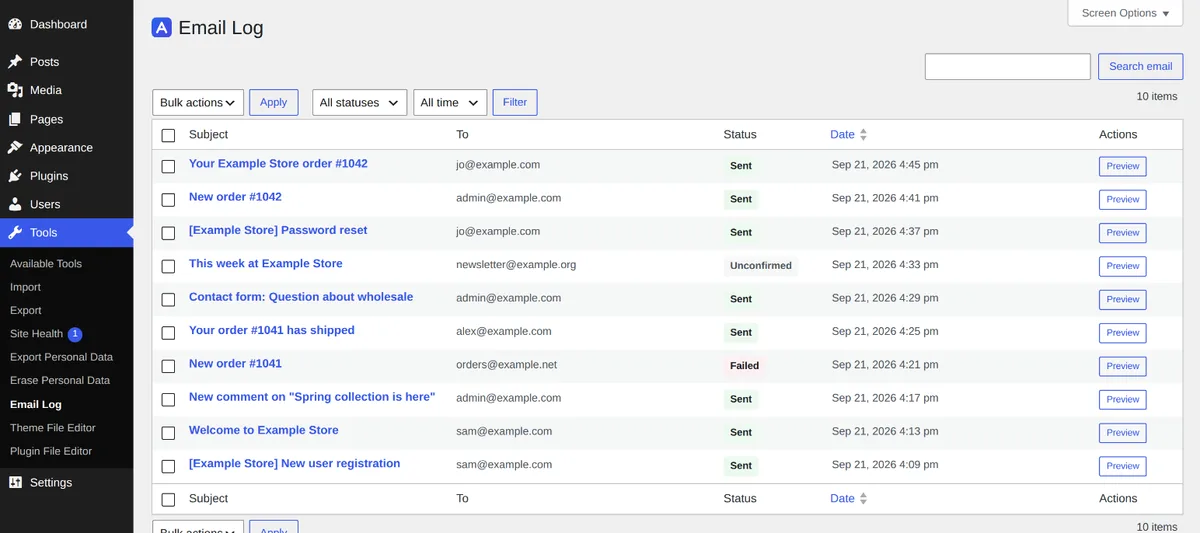
**Tools → Email Log** lists every logged email, newest first.
Tools → Email Log: every email the site sent, newest first.
Columns are Subject, To, From, Status and Date, plus an Actions column with a Preview button.
**Screen Options**, in the top-right corner, offers a show/hide checkbox for every column but
Subject — Subject stays, since it opens the preview and is what a narrow screen keeps when
every other column collapses.
**From is hidden by default.** Most of the time the recipient and the subject are enough; turn
From back on from Screen Options when you need to see which address an email really went out
with, useful if an SMTP plugin swaps the sender at the last moment.
Only administrators can open the log. Editors, shop managers and other roles don't see
Tools → Email Log at all.
## Statuses
- **Sent** — the mail server accepted the email. It does not mean the email reached the inbox:
the receiving server can still file it as spam or drop it silently.
- **Failed** — WordPress tried and got an error back. The error is kept and shown in the
preview; an SMTP username or password quoted inside it is scrubbed out first.
- **Unconfirmed** — WordPress never heard back either way. That happens when another plugin
takes over sending, or queues the email to send later. The email may still have gone out; the
log just has no word on it.
## Filters and search
Above the list: a **status** dropdown (all statuses, or one of the three above), a **period**
dropdown (1 hour, 12 hours, 1 day, 2 days, 7 days, 30 days, or Custom for a From/To date range),
and a search box.
Search looks at the **recipient, sender and subject** — not the body. Filtered views live in
the address bar, so a search like "failed in the last day" can be bookmarked and checked each
morning.
## Preview
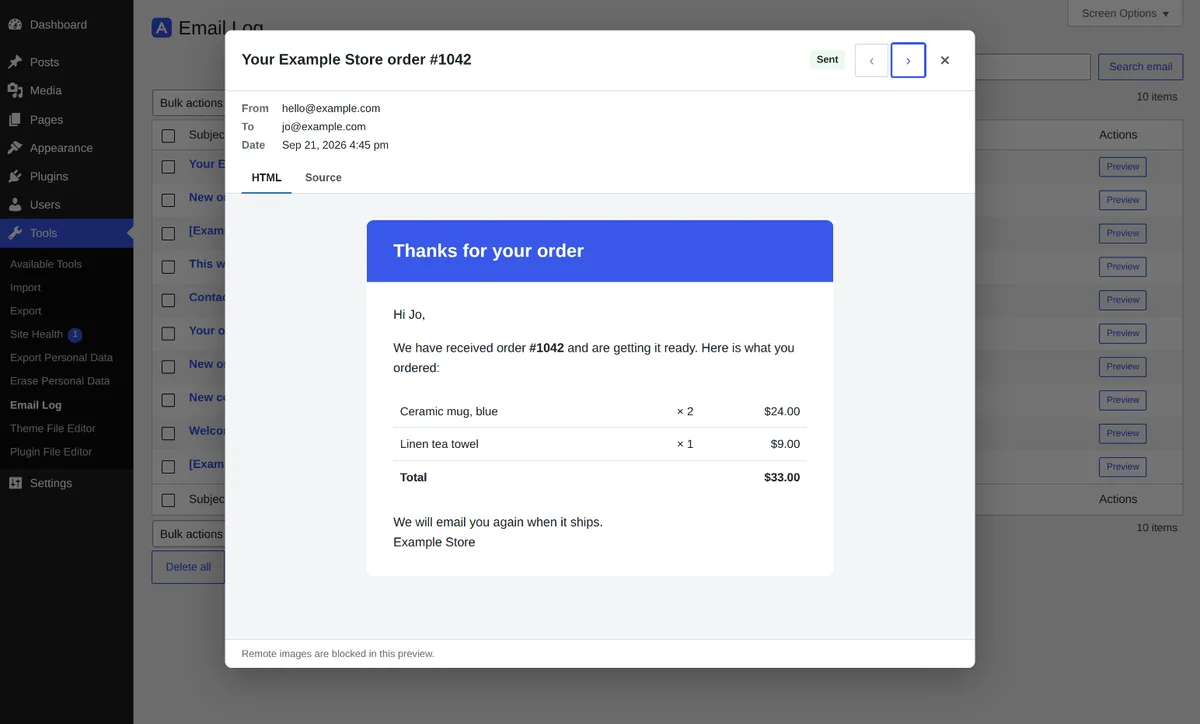
Click a subject, or its **Preview** button, to open the email in a modal over the list. The top
shows the status, sender, recipient, date, any Cc, Bcc and Reply-To, and attachment names — a
failed email shows its error there too. **‹** and **›** step to the previous and next email
without closing the modal.
Open any logged email as it was sent. Remote images stay blocked.
Below that, the email itself in tabs: **HTML** (rendered as it was sent — labelled **Plain
text** instead when the email has no HTML part), a separate **Plain text** tab shown only when
the email carried both an HTML and a plain-text part, and **Source** (the stored body as text,
markup included).
The preview is sandboxed: scripts don't run, forms don't work, and remote images are not
loaded, since it is showing HTML that other people wrote — form submissions, plugins, order
data — inside an admin screen.
## Settings
- **Keep the content of each email, with sign-in and password-reset links removed** — on by
default. Password-reset, sign-in and account-activation links are replaced with
`[link removed]` before an email is stored; the rest of the content is kept. Untick this and
the log keeps only the envelope — recipient, sender, subject, headers, attachment names and
status — with no content to redact in the first place.
- **Keep logs for** — 7, 14, 30, 60 or 90 days, 1 year or 2 years. The default is 30 days.
Entries past this age are deleted once a day, in batches, and the log is also trimmed to the
newest 10,000 rows as email is logged, so a burst of sends can't push it past that cap between
purges.
## Importing from the Email Log plugin
Already running the [Email Log plugin](https://wordpress.org/plugins/email-log/)? Adminkeep can
read its table and copy the history in — sign-in links removed on the way in, the other
plugin's own log left untouched. [Moving from the Email Log
plugin](/guides/migrate-from-email-log-plugin/) covers what comes across, what doesn't, and how
to run the copy from the admin screen or from WP-CLI.
## WP-CLI
Since 1.7.0, the log is also reachable from the command line:
```bash
wp adminkeep email-log list --status=failed --format=json
wp adminkeep email-log get 482
wp adminkeep email-log count --status=failed
wp adminkeep email-log purge --older-than=90 --yes
wp adminkeep email-log import email-log --dry-run
```
| Command | What it does |
|---|---|
| `wp adminkeep email-log list` | Lists logged email, newest first. Never prints a body |
| `wp adminkeep email-log get ` | Prints one email, content included |
| `wp adminkeep email-log count` | How many emails are logged |
| `wp adminkeep email-log purge` | Permanently deletes logged email |
| `wp adminkeep email-log import ` | Copies another plugin's log in |
`list` takes `--status=`, `--search=` (recipient, sender or
subject), `--since=` (UTC, e.g. `2026-09-01`), `--limit=` (default 50, at most
500), and `--format=`. `count` takes `--status` only.
`purge` takes `--all` or `--older-than=` — never both — and asks for confirmation unless
you pass `--yes`.
`import` takes a source name (`email-log`, for the Email Log plugin) and `--dry-run`, which
reports what would be imported without writing anything. It needs the Email Log feature
switched on first, the same as the button on the screen.
`list`, `get`, `count` and `purge` work whether or not the feature is on: what was logged stays
readable from the command line after logging is switched off. The full reference is
[Email Log](/docs/wp-cli/#email-log) in the WP-CLI docs, and `wp help adminkeep email-log`
always matches the version you run.
## Privacy
The **personal-data exporter** and **eraser**, under Tools → Export/Erase Personal Data, both
cover the email log. A request for one address exports or deletes every logged email that holds
it in To, From, Reply-To, Cc or Bcc — not just the rows where it is the recipient, so a stranger's
address left in a contact form's Reply-To is covered too.
Uninstalling the plugin drops the email log table entirely, along with everything in it.